Linux that speaks tiếng Việt

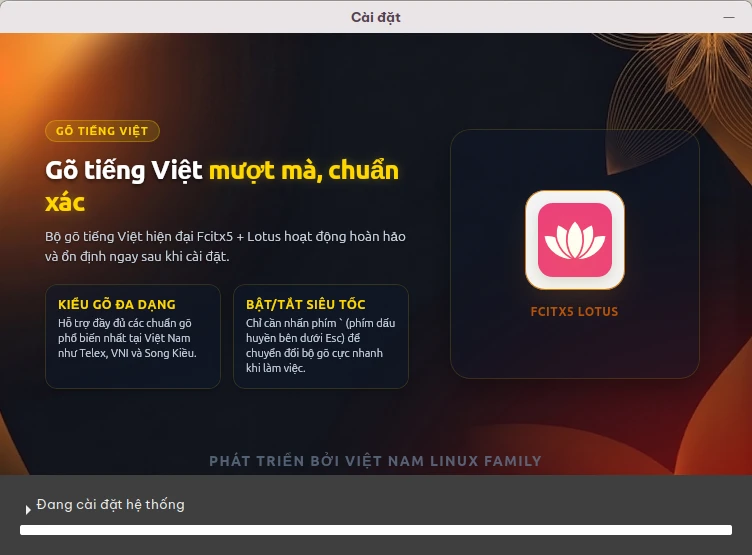
Telex typing works from the first boot: the Lotus input method is built in.

CaramOS is a free operating system for computers at home, at the office and in school labs. It starts up with Vietnamese and its input method ready; installing apps and drivers and updating the computer are done with buttons, not commands.

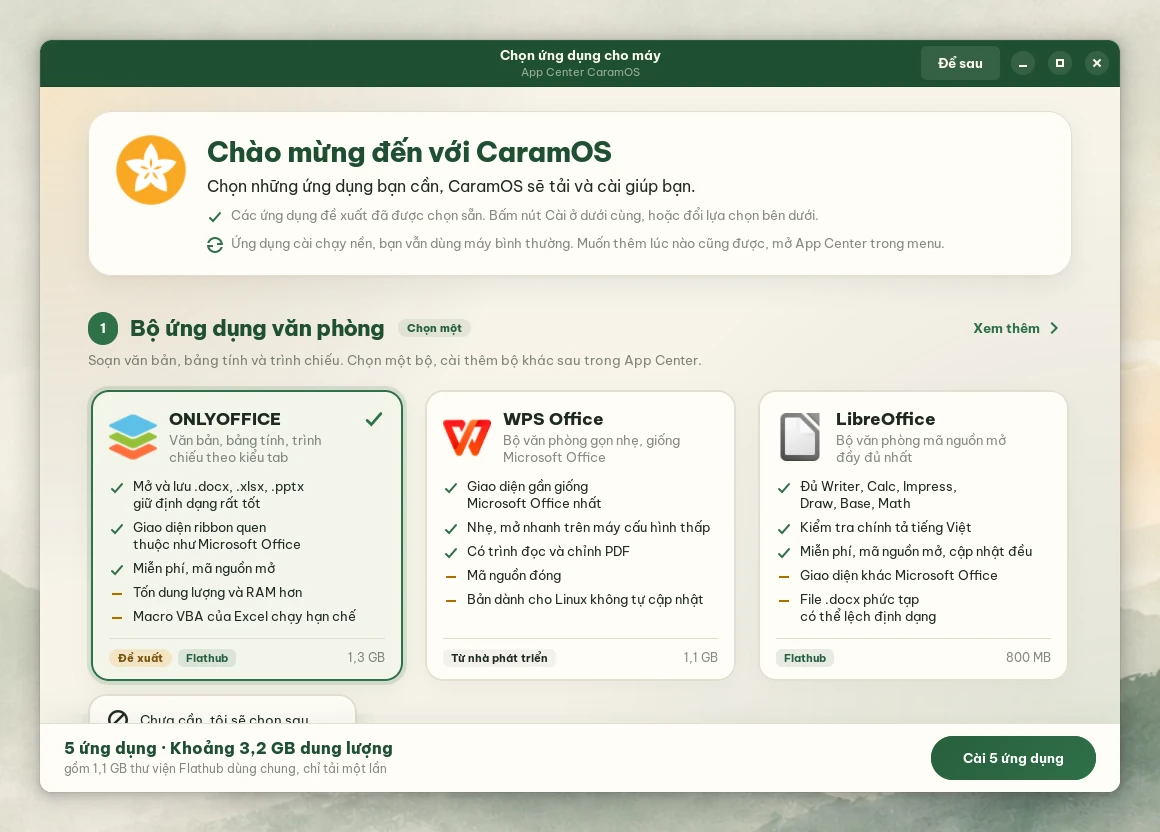
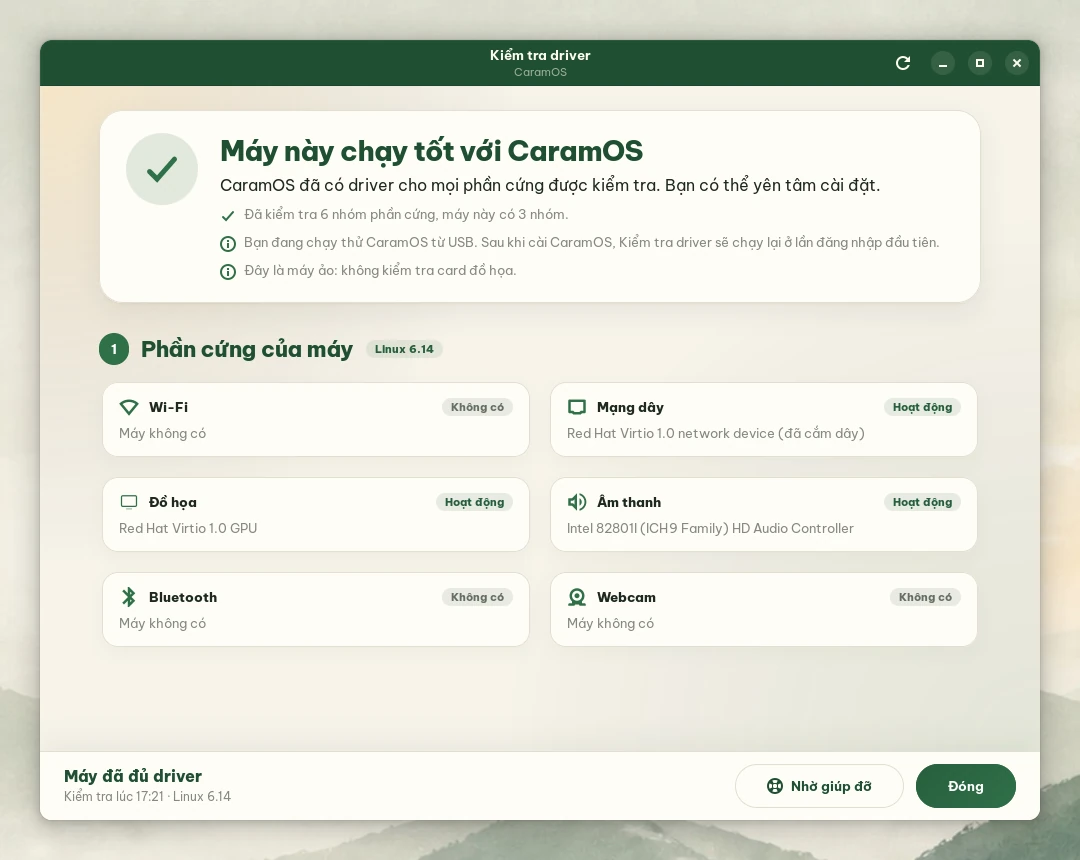
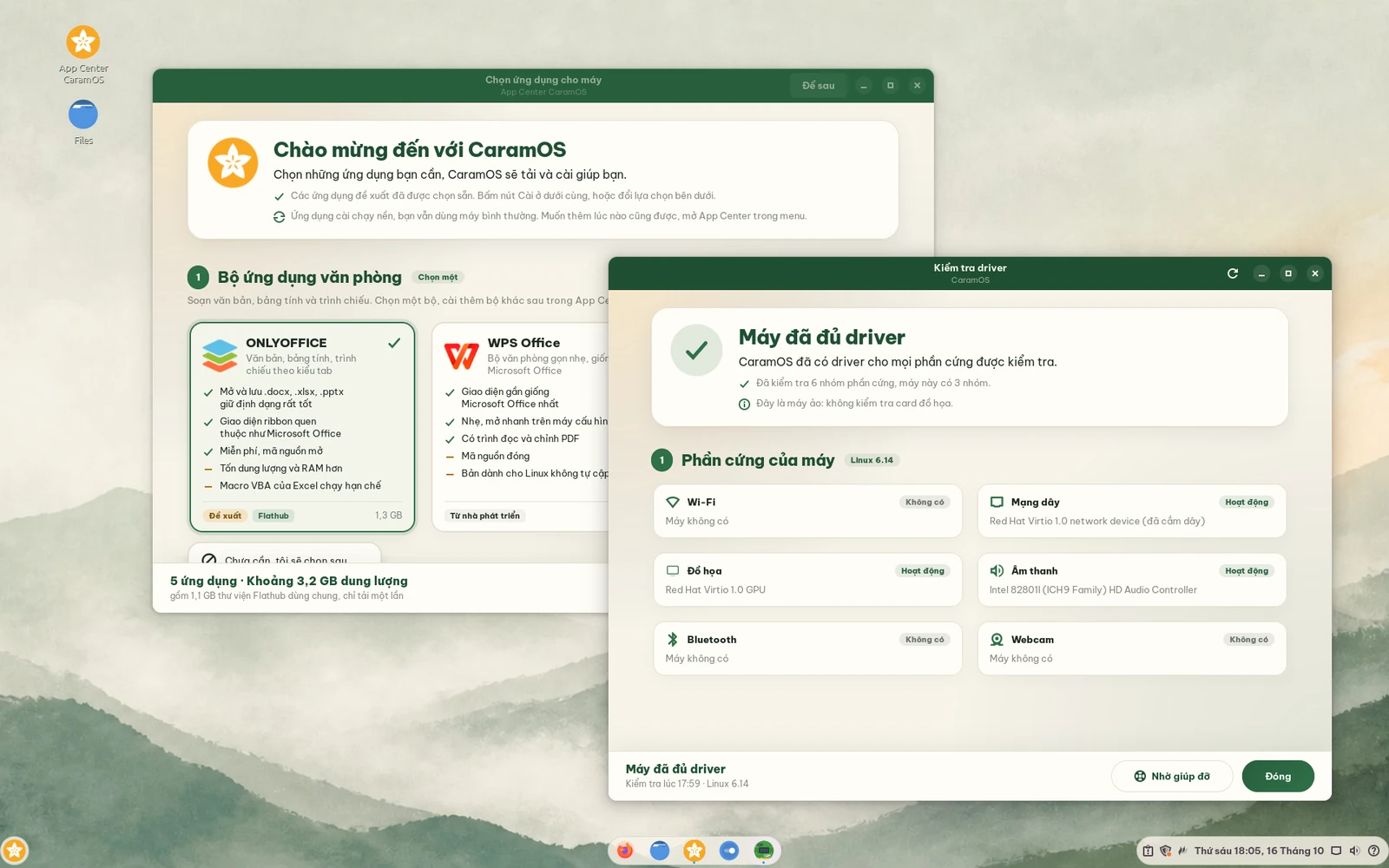
CaramOS at the first login: the App Center suggests apps, and Driver Check says the computer has every driver
Free and open source
GPL-3.0, source code on GitHub
Built on Linux Mint 22.3
Ubuntu 24.04 LTS, security updates until 2029
Version 1.4.0
released 19 November 2026

CaramOS on Unikorn

If CaramOS is useful to you, clap for the project on Unikorn to encourage the team and help it reach more Vietnamese Linux users. To help pay for the project, donate through MoMo (transfers from any Vietnamese bank), PayPal, Ko-fi, Buy Me a Coffee or USDT.

  • CaramOS on Unikorn.vn
  • CaramOS in the Unikorn daily ranking
  • CaramOS in the Unikorn weekly ranking
  • CaramOS in the Unikorn monthly ranking

Which edition suits your computer?

Both editions have Vietnamese typing, the App Center, Driver Check and the Update Center. Cinnamon is the main edition, with a Vietnamese interface, for computers with 4 GB of RAM or more. Xfce uses about 170 MB less RAM, for older 2 GB computers and school labs.

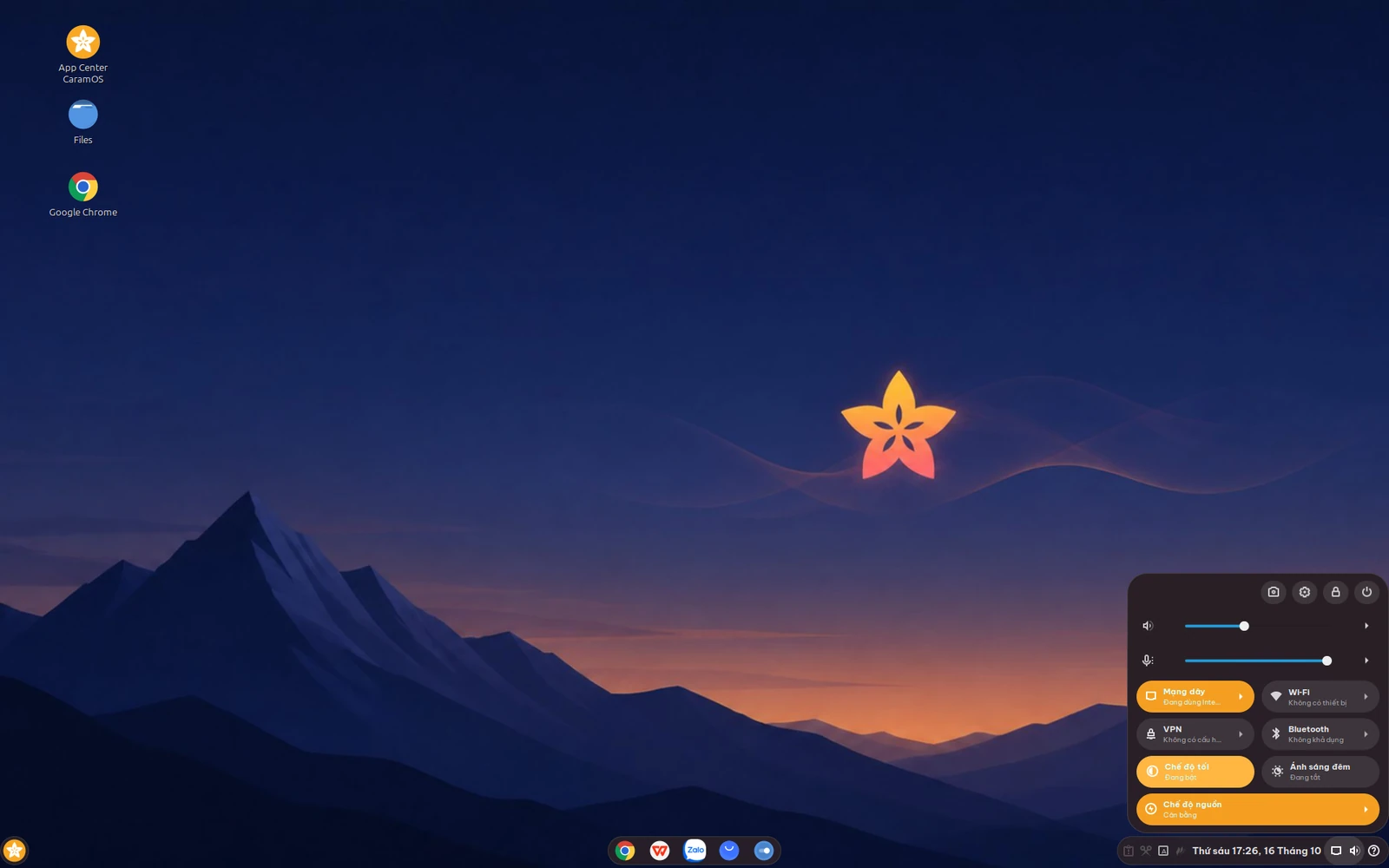
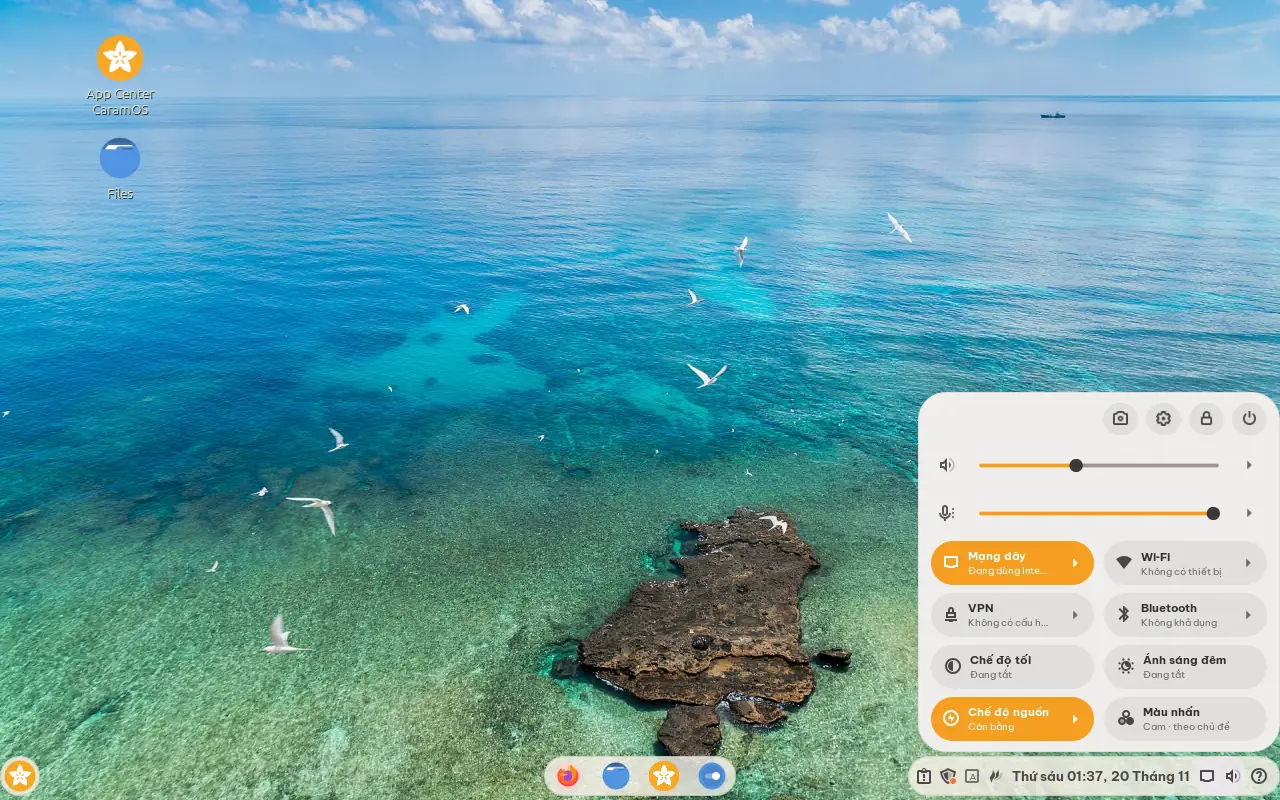
CaramOS Cinnamon with a Việt Nam mỗi ngày wallpaper and the Control Center open
Cinnamon editionThe main edition
CaramOS Xfce with the Control Center open at the right of the taskbar
Xfce editionNew in 1.4.0
Cinnamon editionXfce edition
ForComputers with 4 GB of RAM or more2 GB computers, older machines, school computer labs
RAM right after boot*About 780 MBAbout 610 MB
InterfaceVietnameseEnglish, with the same words as the Tin học textbooks (New, Folder, Copy, Paste…). Choosing Vietnamese at install gives Vietnamese; Vietnamese typing works as usual.
ISO size2.8 GB2.7 GB
DownloadDownload CinnamonSHA256Download XfceSHA256

* What Task Manager shows right after boot, measured the same way on the same 2 GB computer. A computer running the Cinnamon edition does not switch to Xfce by itself; to use Xfce, install it fresh from the Xfce ISO.

For school computer labs

1.4.0 started from the requests of a teacher of Tin học (computing) whose lab has only 2 GB computers. The three things below are in both CaramOS editions.

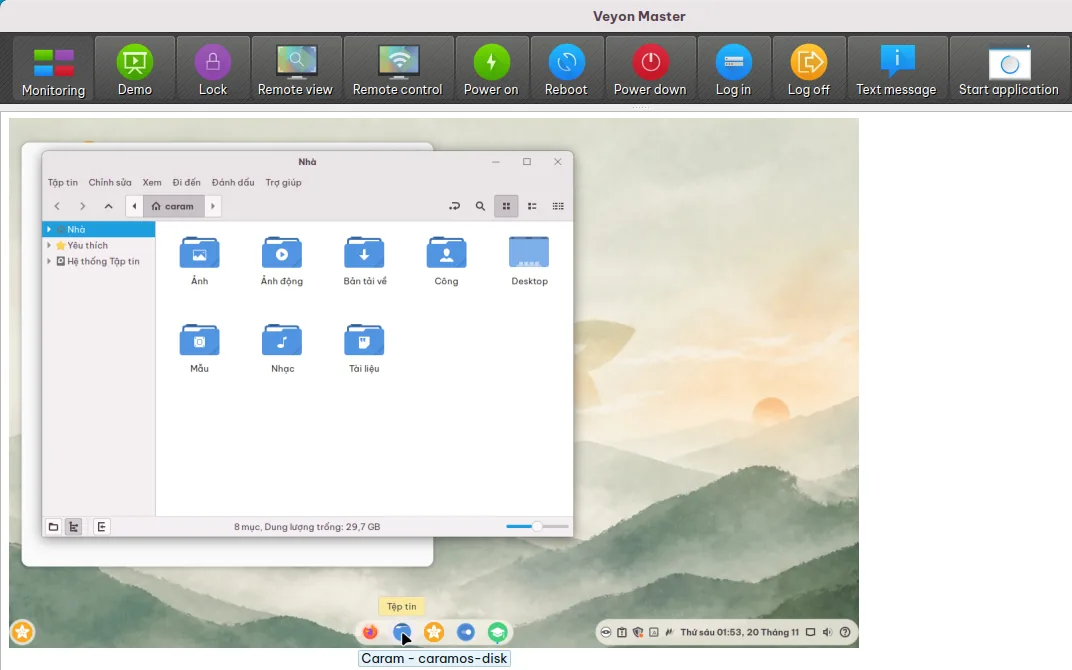
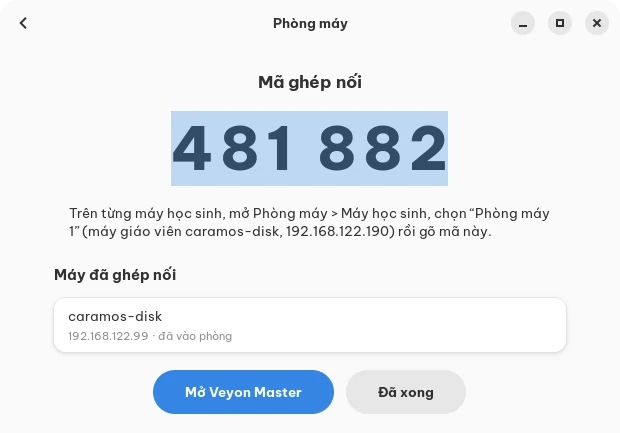
Veyon Master on the teacher's computer showing a pupil's screenThe 6-digit pairing code on the teacher's computer

Computer Lab: the teacher sees every pupil's screen

The Computer Lab tool installs and sets up Veyon (or the lighter Epoptes) so the teacher can watch screens, send messages and control the pupils' computers. The teacher's computer shows a 6-digit code; each pupil's computer finds the teacher's on the school network, and typing the code is all it takes to join.
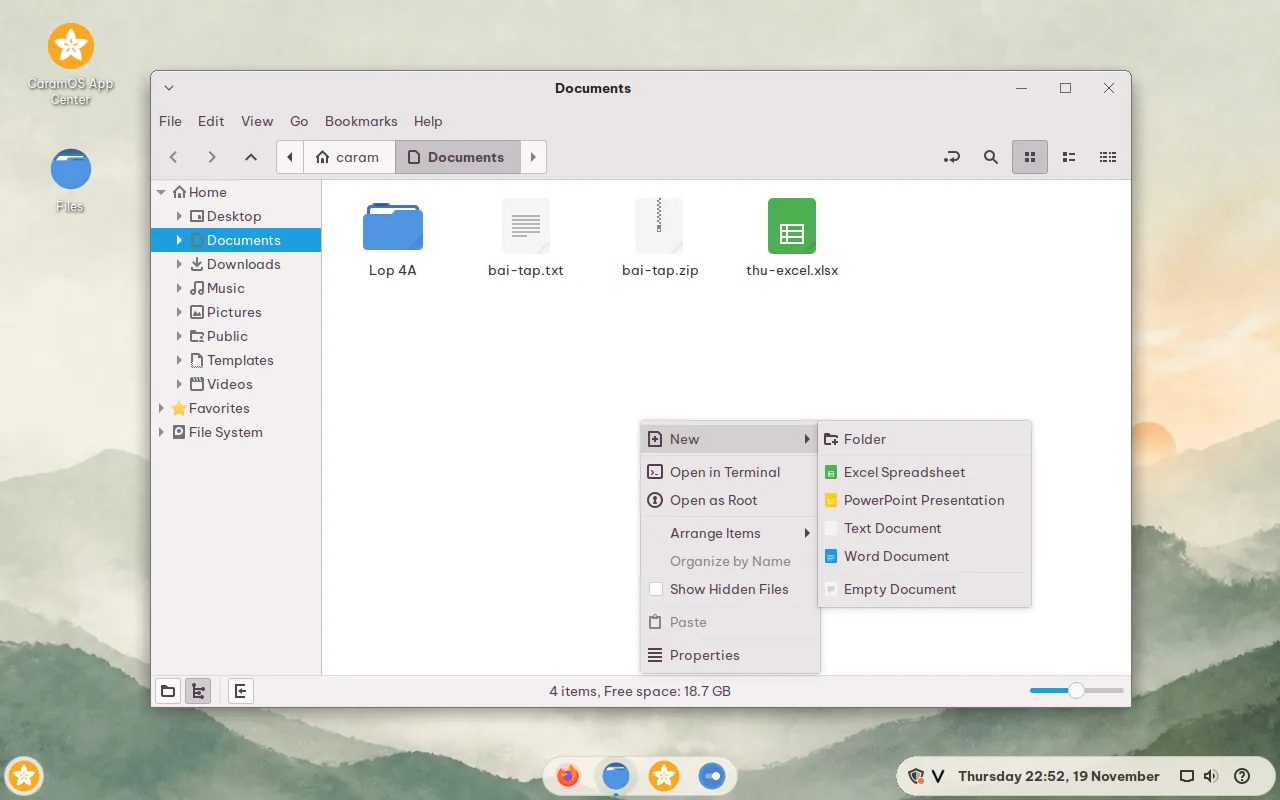
Files on the Xfce edition: right-click New ▸ Folder, with the folder tree on the left

Right-click, New ▸ Folder, as in the textbook

Files has New ▸ Folder (Mới ▸ Thư mục in Vietnamese) and Word, Excel and PowerPoint templates. The left pane is a folder tree that opens level by level like Windows Explorer, for the lessons on folder trees.

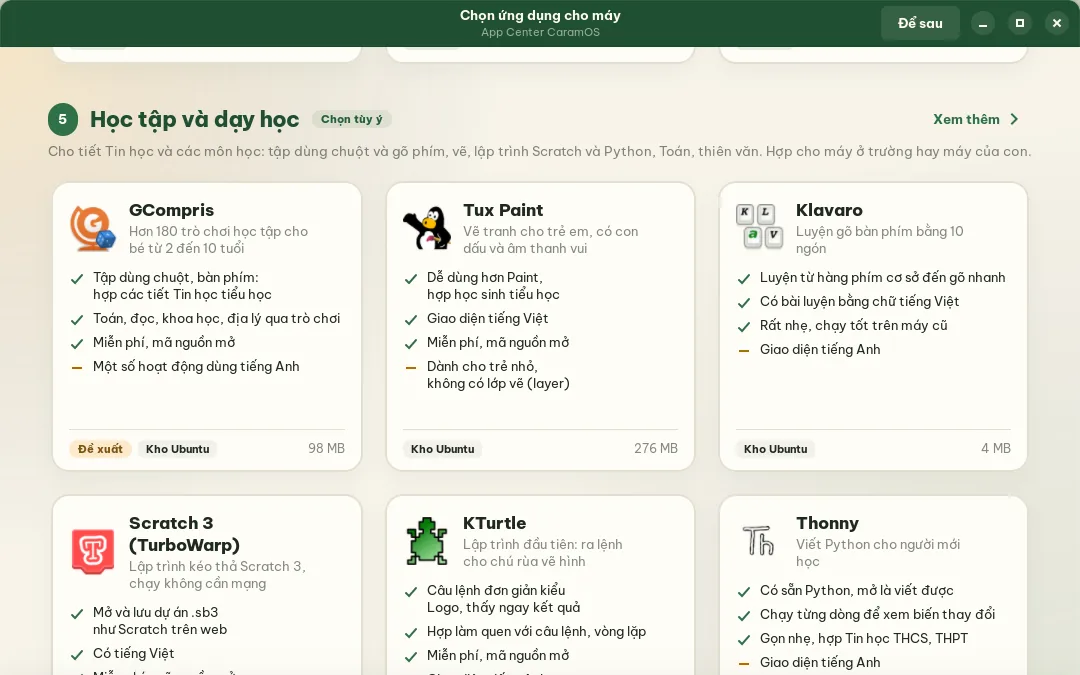
The App Center's Learning and teaching section

Learning apps in the App Center

The Learning and teaching section has GCompris, Tux Paint, Klavaro (typing practice), KTurtle, Thonny (Python), Stellarium, TurboWarp (Scratch 3) and GeoGebra 6. Nothing is selected in advance, so home computers download only what they need.

Everyday tasks, no commands needed

What newcomers to Linux usually have to look up is right on the screen: installing apps and drivers, changing settings, updating and asking the community, without opening a terminal.

Zalo, Chrome and an office suite, one click away

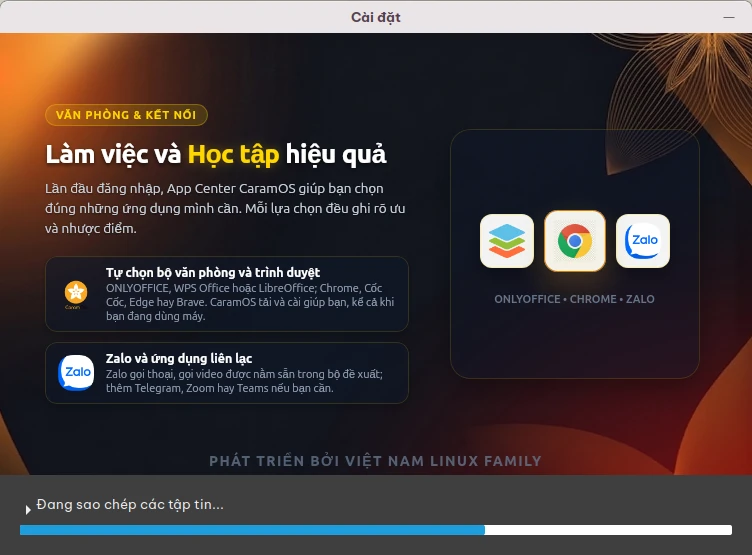
At the first login the App Center opens with the usual apps already selected. Click Install once; while CaramOS downloads and installs, keep using the computer.

  • Office: ONLYOFFICE, WPS Office or LibreOffice. Browsers: Chrome, Cốc Cốc, Edge, Brave, Firefox.
  • Chat and calls: Zalo with voice and video calls, plus Telegram, Zoom, Teams for Linux and Discord.
  • Every app lists its strengths, weaknesses, size and source (Flathub, the Ubuntu archive or a downloaded package), so you can pick what suits your computer.
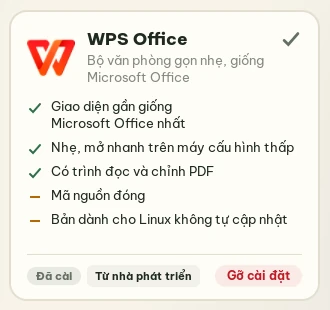
  • Remove an app right from its card; open the App Center again any time from the Desktop or the menu.
More apps in the VNLF app directory
The CaramOS App Center with the recommended office suiteThe Remove button on the installed WPS Office card

Know whether your computer works, before installing

Try CaramOS from the USB stick and Driver Check tells you at once what the computer is missing: Wi-Fi, sound, graphics or a printer. After installing it checks again at the first login, then only speaks up about new problems.

  • Checks Wi-Fi, wired network, graphics, sound, Bluetooth, webcam, fingerprint reader and Canon CAPT printers (LBP2900, LBP6300dn…).
  • Missing the NVIDIA or Broadcom Wi-Fi driver? One click installs the one Ubuntu recommends for the computer. Canon printers work the same way, network printers included.
  • Not online yet? It explains how to use a network cable, share a phone’s connection over USB, or install the driver straight from the CaramOS USB stick.
  • Still stuck? Ask for help sends a message with the hardware details to the VNLF community.
Driver Check: this computer works well with CaramOS

New versions without reinstalling

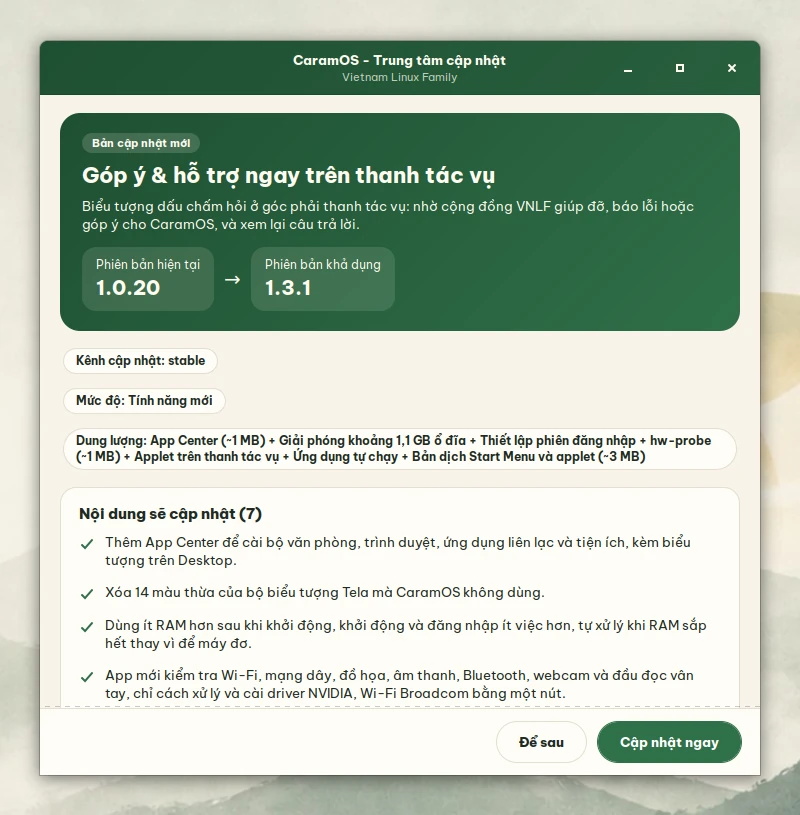
The Update Center brings a computer installed from any CaramOS release to the latest one, without reinstalling or losing data.

  • Checks every day and, when a new version is out, tells you with a list of every change.
  • Nothing is installed until you agree: Update now, or Later.
  • What you changed yourself stays: your wallpaper, your icon colour, the applets you removed.
How to upgrade
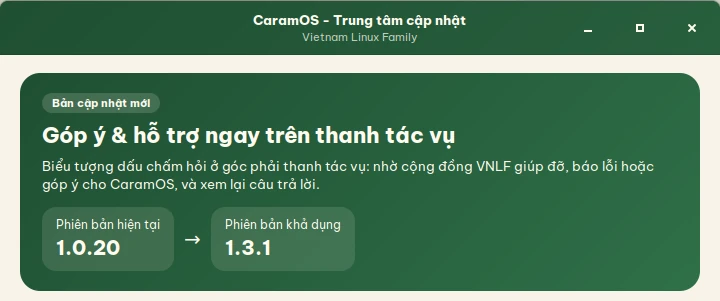
CaramOS Update Center: from 1.0.20 to 1.3.1

Wi-Fi, volume and dark mode in one place

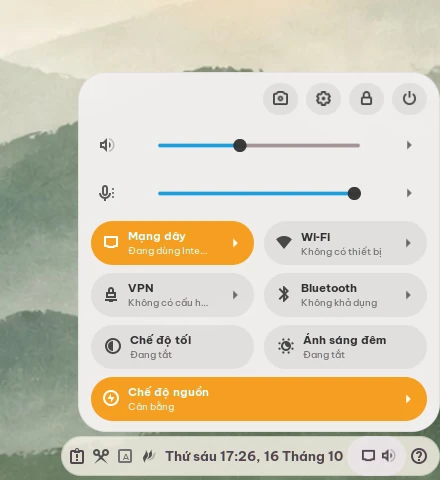
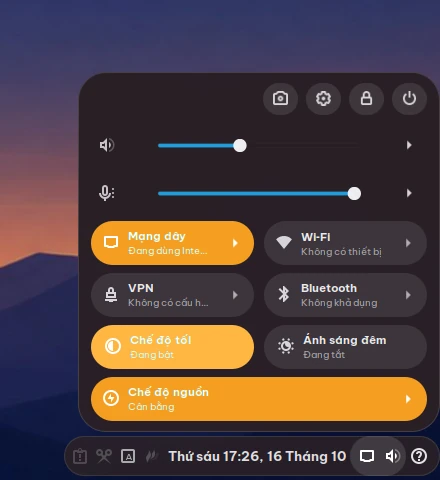
Click the right end of the taskbar to open the Control Center: network, sound, Bluetooth, dark mode and power mode are all there, instead of a row of small icons.

  • Speaker and microphone volume, and whether sound plays through headphones or speakers.
  • Wired network, Wi-Fi, VPN and Bluetooth, each with its own quick list.
  • Dark mode, Night light and Power mode: Performance, Balanced, Power saver.
  • Laptop brightness and battery, screenshot, Settings, lock and power off.
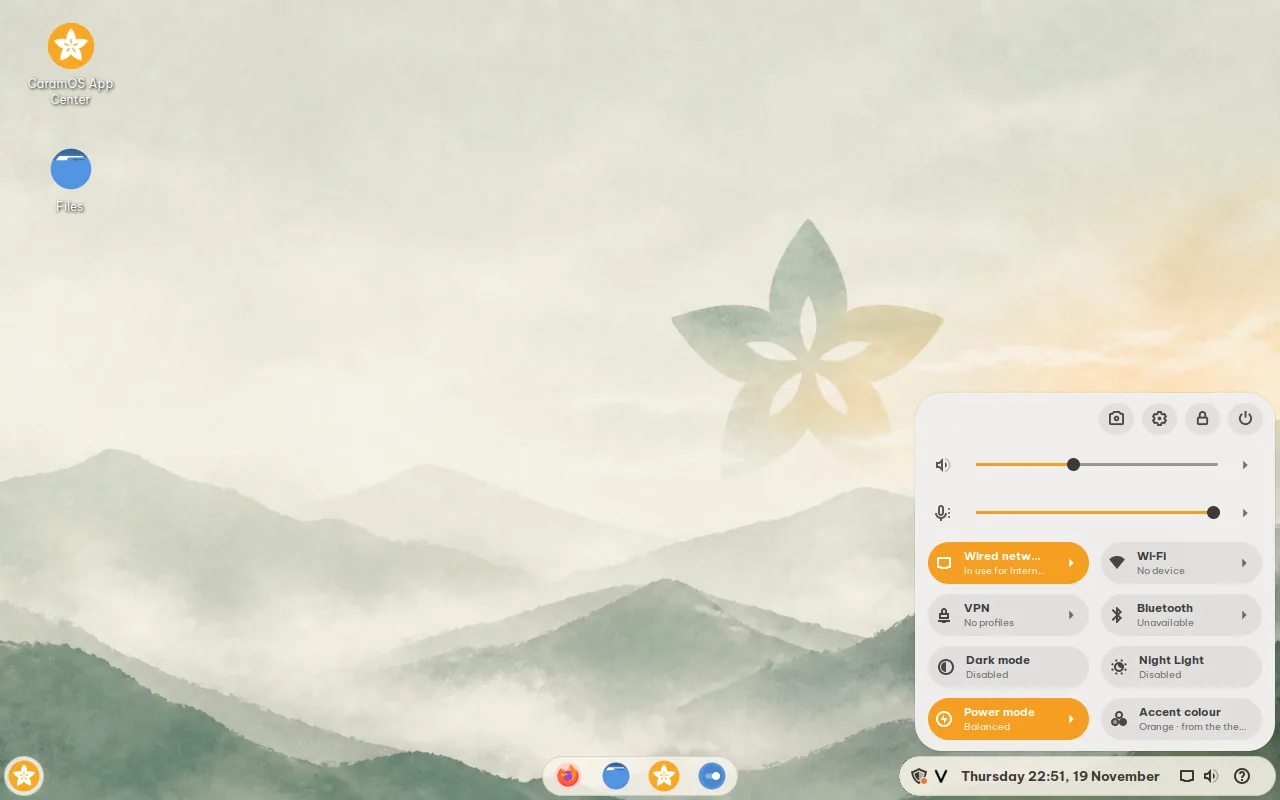
Control Center, lightControl Center, dark

Stuck? Ask from the taskbar

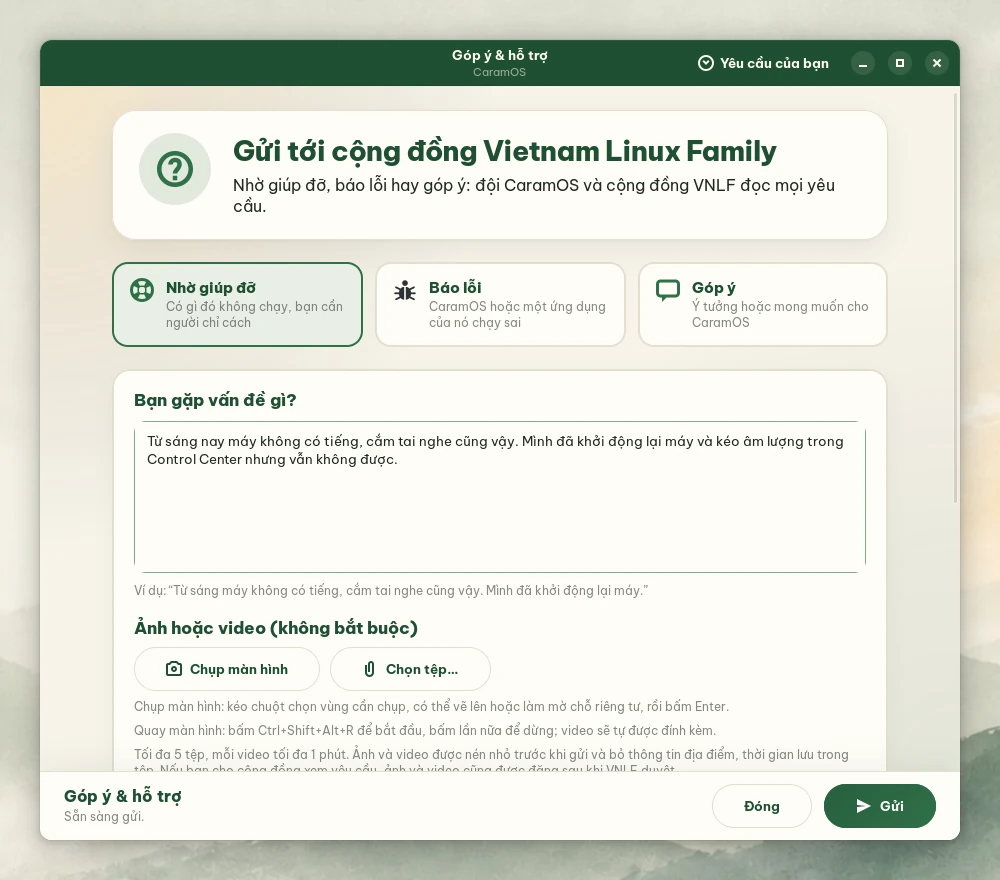
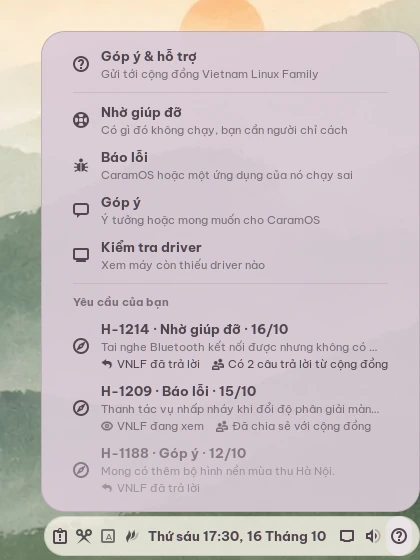
Click the Feedback & Help question mark at the right end of the taskbar to ask for help, report a bug or send feedback, straight to the Vietnam Linux Family community.

  • Attach screenshots (private parts can be blurred) or videos of up to a minute, made smaller and without location data.
  • If you agree, attach the hardware details (no user names, computer name or IP addresses) and the Driver Check results.
  • Follow your requests and get notified when someone answers.
  • VNLF reviews requests before publishing; your contact details stay private.
The Feedback & Help windowThe Feedback & Help menu with the state of each request

A taskbar that feels like Windows

The taskbar is split into three rounded islands: the Start Menu on the left, your apps in the middle, the clock and quick settings on the right. Clean to look at, and used just like Windows.

  • Left island: the Start Menu finds apps in Vietnamese, even typed without accents; hold Ctrl and roll the mouse wheel to resize its icons.
  • Middle island: pinned and running apps, with a small dot under the open ones.
  • Right island: system tray, input method, clock, Control Center and Feedback & Help.
The three islands of the CaramOS taskbar

Good-looking from power-on, light or dark

The look is the same from the boot menu to the desktop: the Cinnamon Delight theme, Tela Circle icons and the Be Vietnam Pro font.

  • One click in the Control Center switches to dark mode, and the wallpaper follows.
  • Five wallpapers drawn for CaramOS: Sage Mist in light mode, Indigo Night in dark mode.
  • Boot menu, splash screen, installer and GRUB menu share the same look.
CaramOS in dark mode

Vietnamese right after installing

Interface, Vietnam time, date formats and Vietnamese typing are ready after installing, with nothing to set up.

  • Fcitx5 + Lotus is on: Telex by default, with VNI and other common methods.
  • Ctrl+Shift switches between English and Vietnamese; the ` key (below Esc) opens the method menu.
  • Apps installed from Flathub type Vietnamese and use the system fonts as usual.
  • Pick another language in Settings and the whole system follows.
The Fcitx5 Lotus input method in the CaramOS installer

A photo of Vietnam as your wallpaper, every day

Open System Settings > Backgrounds, click the Việt Nam mỗi ngày folder and pick a photo. From then on the wallpaper is a new photo of Vietnam's nature, landscapes and landmarks every day: 45 photos from Wikimedia Commons, each credited. Picking another wallpaper turns it off.

See all 45 photos and their authors
Rice terraces at harvest time in Hà Giang
Rice terraces at harvest time, Hà Giang. Photo: minhphuc_99kdd, public domain, Wikimedia Commons.

Canon laser printers: plug in and print

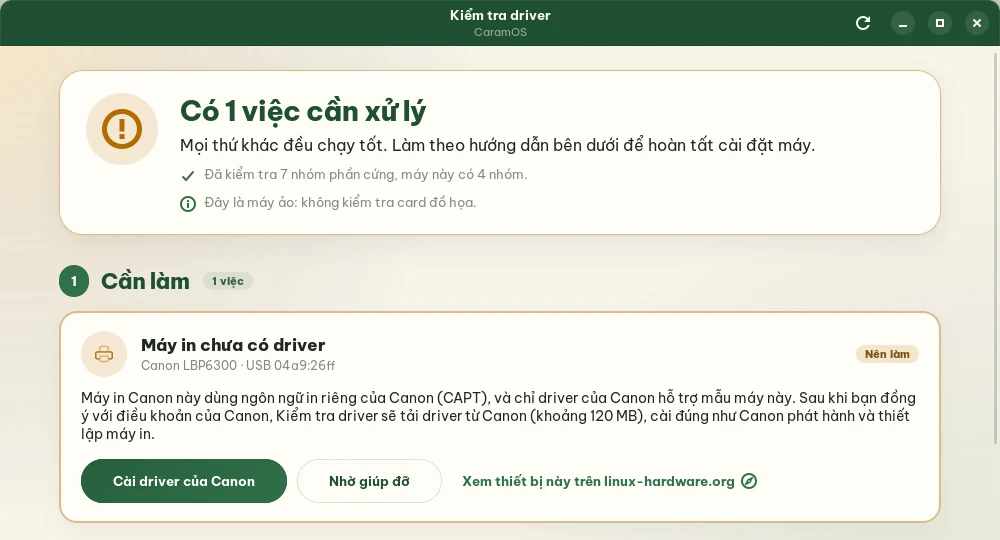
Canon CAPT laser printers such as the LBP2900, LBP3300 and LBP6300dn are notoriously hard to set up on Linux. On CaramOS, Driver Check recognises the printer, installs the right driver and creates the print queue, with no commands to type.

  1. Plug in the printerA “The printer has no driver” notification comes up right away.
  2. Click installClick the install button in Driver Check and type your password. Canon's driver asks you to accept Canon's terms first.
  3. PrintPick the new printer when you print. It keeps working after a replug or a restart.
Driver Check reports that the Canon LBP6300 printer has no driver, with an Install Canon's driver button

Over USB 22 models

Driver Check recognises the printer as soon as it is plugged in.

Canon's own driver

  • LBP-1120
  • LBP-1210
  • LBP3200
  • LBP3210
  • LBP3300
  • LBP3310
  • LBP3500
  • LBP5000
  • LBP5050
  • LBP5100
  • LBP5300
  • LBP6020
  • LBP6200
  • LBP6300dn
  • LBP7010C/LBP7018C
  • LBP7200C/LBP7200Cdn
  • LBP9100Cdn

Open-source captdriver (since 1.3.7)

  • LBP2900/LBP2900B
  • LBP3000experimental
  • LBP3010/LBP3018/LBP3050
  • LBP3100/LBP3108/LBP3150experimental
  • LBP6000/LBP6018experimental

On the office network 13 models

Open Driver Check, click “Add printer…”, pick the model and type the printer's IP address.

  • LBP3300
  • LBP3310
  • LBP3500
  • LBP5000
  • LBP5050
  • LBP5300
  • LBP6300dn
  • LBP6300n
  • LBP6310dn
  • LBP7200C/LBP7200Cdn
  • LBP7210Cdn
  • LBP9100Cdn
  • LBP9200C

A Canon PIXMA inkjet or another brand? These printers use drivers that come with CaramOS and are not in the lists above. Open Printers from the menu to add the printer, then pick the make and model, for example Canon PIXMA MG8120 or PIXMA iP8720.

Not supported yet: LBP810, LBP3600, LBP5200. Canon's driver is downloaded straight from Canon's server and checked before it is installed; Canon's terms allow it for personal, non-commercial use.

How is CaramOS different from stock Linux Mint?

Measured on the same virtual machine (4 cores, 6 GB of RAM), the Cinnamon edition of both; RAM 5 minutes after boot.

CaramOSLinux Mint 22.3
Installer ISO2.8 GB3.1 GB
RAM when idle865 MiB941 MiB
When RAM runs outNo freeze: earlyoom closes the hungriest appFroze for over 30 minutes (slow disk)
Security updatesUntil 2029, on Ubuntu 24.04 LTSUntil 2029, on Ubuntu 24.04 LTS

Also built in

  • CaramOS wallpapers

    Five wallpapers drawn for CaramOS, following light and dark mode.

  • Quick screenshots

    Flameshot on Print or Super+Shift+S: pick an area, draw, blur, then save or paste.

  • CaramOS boot menu

    The boot menu, splash screen and even the GRUB menu on dual-boot machines.

  • Fully localized

    Language, Asia/Ho_Chi_Minh time zone, date formats and Vietnamese fonts by default.

Upgrade to CaramOS 1.4.0 without reinstalling

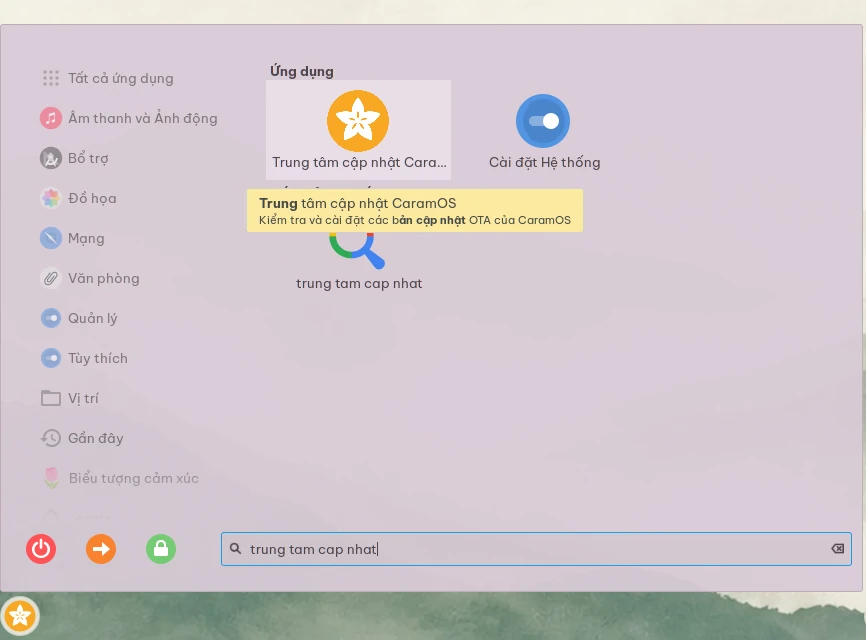
Machines on CaramOS 1.0.2 or later already have the Update Center: it checks every day and offers 1.4.0; just click Update now. Machines still on 1.0.1 run the Update Center installer once.

  1. The Update Center offers 1.3.1

    The Update Center tells you when a new release is out.

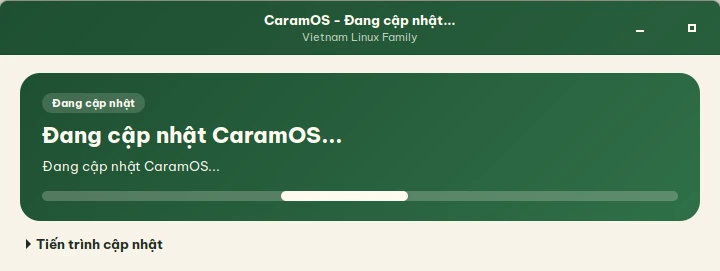
  2. The Update Center updating CaramOS

    Click Update now and enter your password: CaramOS does each step.

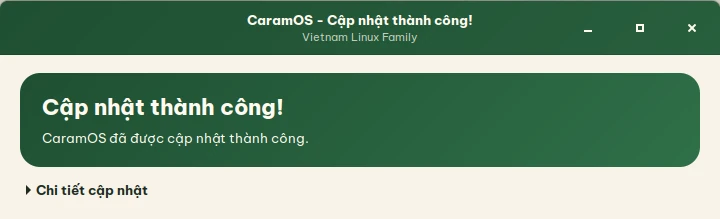
  3. CaramOS updated successfully

    Done, keep working: no reinstall, no lost data.

CaramOS 1.0.1 (no Update Center yet):

curl -fsSL https://caramos.vietnamlinuxfamily.net/install-caramos-ota.sh | sudo bash

Run it once, then open “CaramOS Update Center” from the Start Menu.

Upgrade right away, without waiting for the notification:

sudo caramos-ota --upgrade --yes

No hurry? Skip this: the Update Center will offer the update within a day.

Release notes

1.4.0 is the latest release. 1.3.0 was the first official CaramOS release; the 1.0.x releases before it were Open Beta. Scroll the list for the notable changes of each release.

1.4.0Latest

An Xfce edition for 2 GB computers and school computer labs

  • A new, lighter Xfce edition for 2 GB computers and school labs: right after boot, Task Manager shows about 610 MB of RAM on a 2 GB computer. It keeps the three-island taskbar, the Control Center, the App Center, Driver Check and Vietnamese typing. Its interface is English by default, to match the Tin học textbooks; choosing Vietnamese at install gives Vietnamese.
  • Files: right-click and choose New ▸ Folder (Mới ▸ Thư mục on the Cinnamon edition), as in Windows and the textbooks, with Word, Excel and PowerPoint templates. New installs show a folder tree in the left pane, like Windows Explorer.
  • Computer Lab: installs and sets up Veyon or Epoptes, so the teacher can watch and control the students' computers. The teacher's computer shows a 6-digit code; a student's computer finds it on the school network, and entering the code is all it takes.
  • The App Center has an Education category: GCompris, Tux Paint, Klavaro, KTurtle, Thonny, Stellarium, TurboWarp (Scratch 3) and GeoGebra 6.
  • Opening a Word, Excel or PowerPoint file without an office suite now offers ONLYOFFICE, WPS Office or LibreOffice from the App Center, instead of only showing the file's folder. .zip files open in the archive manager.
  • The Control Center's sliders are longer, and their track shows in dark mode.

1.3.11

A photo of Vietnam a day, an accent colour for the Control Center

  • A photo of Vietnam a day: open System Settings > Backgrounds, click the Việt Nam mỗi ngày folder and pick a photo. From then on, the wallpaper is a new photo of Vietnam's nature, landscapes and buildings every day (45 photos from Wikimedia Commons, with credits). Picking another wallpaper turns it off.
  • The Control Center has an Accent colour tile: 8 presets, the theme's colour, or any colour you pick (Other colour…). A computer updated to 1.3.11 shows the tile from the next login.
  • After a start that never reached the desktop (a black screen, a hang), the boot menu shows for 30 seconds at the next start, with Advanced options for the recovery mode.
  • Files: the right-click menu now has Copy path to clipboard and Create a desktop shortcut, and picture thumbnails show on phones, network shares and Google Drive too.
  • Install USB: the boot menu counts down 10 seconds, with larger text and Vietnamese key help (computers with Secure Boot keep the small default font). sudo apt update no longer prints the Lotus input method's i386 notice.

1.3.10

The Update Center says why nothing was updated, fewer false alarms in Driver Check

  • Closing the password window during an update no longer ends on “Update failed”: the Update Center says “Not updated yet” and offers Try again.
  • Starting an update while the computer is already updating, or while another Update Center window is open, shows “Another update is running”: wait for it to finish, then click Try again.
  • A Canon printer plugged in over USB that the computer cannot talk to (a loose cable, a bad USB port, a hub) is reported as “The printer is not connected properly”, with advice to try another port or cable, instead of offering a driver that then fails to install.
  • Laptops with Intel GM45 (Mobile 4 Series) graphics no longer get a false “no driver” warning for their graphics card.

1.3.9

Canon's own printer driver for the LBP6300dn and other CAPT printers, PrtSc takes screenshots

  • Driver Check installs Canon's own driver for the Canon CAPT printers captdriver cannot drive yet, such as the LBP6300dn, LBP3300, LBP5000, LBP6200 and LBP7200C. Over USB: plug it in, click Install Canon's driver, agree to Canon's terms, and about a minute later the printer is ready (22 models).
  • Network printers (the 13 models with a network port): in Driver Check click Add printer…, pick the model and type its IP address.
  • The driver comes straight from Canon's server and is checked before it is installed; CaramOS sets up the print queue, a print service that starts at boot, printing again after a replug, and keeps other computers on the network away from that service. Canon's terms allow it for personal, non-commercial use.
  • Press PrtSc or Win+Shift+S to take a screenshot (both keys did nothing before): drag over an area, Ctrl+C to copy it into Zalo or Messenger, Ctrl+S to save it in the Pictures folder.

1.3.8

Resize the Start Menu icons with Ctrl + mouse wheel

  • As on Windows: open the Start Menu, hold Ctrl and roll the mouse wheel over the apps. Up makes the icons grow, down makes them shrink, a little with every notch.
  • Smaller icons fit more apps in a row (up to 7), bigger ones fewer. The default size looks as before.
  • The Start Menu stays open on the category or search it shows, and keeps the size for next time.

1.3.7

Canon LBP2900 printers install with one click

  • Plug the printer in and a “The printer has no driver” notification comes up. Click View details, then Install the printer driver, and the printer sets itself up. Before, the system gave Canon's CAPT printers an unsuitable PostScript driver: jobs were reported as printed while nothing came out.
  • The driver is the open-source captdriver. According to captdriver, the LBP2900/LBP2900B and LBP3010/LBP3018/LBP3050 work, and the LBP3000, LBP3100 and LBP6000 are experimental. Other CAPT printers only work with Canon's driver.
  • When a driver install fails, the error page has an Ask for help button, and the request carries the install log. On a computer with a printer, every help request carries a printer log, without serial numbers or document names.
  • Unplugging a printer or a USB Wi-Fi adapter no longer shows “Hardware problem solved”.

1.3.6

The Update Center no longer freezes on a long update

  • The update that finishes an NVIDIA driver left half installed prints about 49,000 lines, and the Update Center window used to stop responding for more than 15 minutes. Those lines now show up in less than a second.
  • The log always scrolls to its latest line, and the result page still has the whole log.
  • The update to 1.3.6 still runs in the window of the version you have. On a computer with an NVIDIA driver left half installed, run sudo dpkg --configure -a before updating; if the window freezes, let it finish and do not turn the computer off.

1.3.5

Installing the NVIDIA driver from Driver Check works again

  • Since 1.3.0, Driver Check stopped NVIDIA driver installs halfway, so after a restart the computer had no graphics driver and a 1024×768 screen. 1.3.5 fixes this.
  • On a computer left like this, open a Terminal, run sudo dpkg --configure -a and restart. The update to 1.3.5 repairs it too.
  • Driver Check checks the free disk space before installing, and says how much to free and where. The NVIDIA driver can bring a newer Linux kernel with it, and then the download is up to about 1 GB.

1.3.4

The input method keeps your settings, a faster Start Menu, updates that get through

  • The Lotus settings you choose (Telex or VNI, the mode, spell checking, shortcuts) are no longer reset at every login, and every session starts typing Vietnamese (V); press Ctrl+Shift to switch to English.
  • The Start Menu shows results while you type Vietnamese, and no longer freezes the computer while searching files, also on a hard disk or with Google Drive mounted in the home folder.
  • The Update Center is no longer blocked by a broken software source another program added, or by a package left half installed, such as the faulty Lotus 3.5.6 or an NVIDIA 470 driver.
  • Driver Check offers the NVIDIA 580 driver instead of 470, which does not work on Linux 6.14 and later, and says so when the graphics driver is turned off by nomodeset or a blacklist.
  • App Center 0.2.3 installs apps while another package is half installed, waits for the CaramOS installer in the live session from USB, and resumes WPS Office downloads the server cuts off.

1.3.3

Vietnamese typing works at every login

  • On some new installs of CaramOS 1.3, and in the live session from USB, the Lotus input method did not start, so typing gave letters without accents. It now starts at every login.
  • On an affected computer, clicking Update now in the Update Center makes typing work right away, without logging in again.

1.3.2

Zalo installs again, a tidy taskbar, error reports with logs

  • The new Zalo for Linux makes voice and video calls natively, without Wine, so it opens faster. App Center 0.2.2 installs it; the Update Center moves an installed Zalo to it, downloading in the background and trying again every day on a flaky connection.
  • Taskbar icons fit their dock again after the Cinnamon 6.6.9 update; CaramOS now puts its changes back after every Cinnamon update.
  • Driver Check no longer freezes old computers in the live session, and explains why speakers, microphone and cameras do not work yet on Intel Atom tablets such as the Lenovo Yoga Book.
  • When the App Center or the Update Center fails, Ask for help sends a request with the error log; only the VNLF team sees the logs, and personal data is taken out before sending.
  • The installer no longer stops right after opening or blocks installing other software in the live session.

1.3.1

A Start Menu and Update Center in one language

  • In Vietnamese the Start Menu shows “Tất cả ứng dụng” and “Biểu tượng cảm xúc” instead of English words; the weather applet and the bundled extensions follow the system language too.
  • Update Center: the size line of an update no longer mixes in English.
  • App Center 0.2.1: Zalo for Linux is labelled “Community package”, since the community packages it, not Zalo.

1.3.0

The first official release: App Center, Driver Check, Feedback & Help

  • App Center: at the first login pick an office suite, browsers, chat apps and everyday tools, and CaramOS installs them; remove an app right from its card.
  • Driver Check: checks Wi-Fi, wired network, graphics, sound, Bluetooth, webcam, fingerprint reader and Canon LBP2900 printers; installs NVIDIA and Broadcom Wi-Fi drivers and Canon LBP2900 printers with one click; opens at the first login and in the live USB session, and speaks up when a printer that needs a driver is plugged in.
  • Feedback & Help: a question mark on the taskbar to ask for help, report a bug or send feedback with pictures or videos to the VNLF community; follow requests and get notified of answers.
  • The Update Center is redesigned in the VNLF colours, with Update now always at the bottom of the window.
  • Lighter than stock Linux Mint 22.3: fewer background services and less RAM; earlyoom closes the hungriest app instead of letting the machine freeze; a 2.8 GB ISO.
  • WPS Office, Chrome and Zalo are no longer preinstalled but picked in the App Center; CopyQ no longer starts at login; 14 unused icon colours (about 1.1 GB) are removed.

1.0.20

Your language, a bilingual interface

  • Removed the forced LC_ALL=vi_VN in /etc/locale.conf: the language chosen in Settings > Languages applies, and English installs no longer get Vietnamese mixed in (#65).
  • The Control Center, Update Center and Audit tool are translated with gettext; update titles and summaries follow the session language.
  • Fixed the Lotus enable service that could hang the boot.

1.0.19

A CaramOS GRUB menu

  • Replaced the blue-on-blue GRUB menu with a CaramOS theme, shown on dual-boot machines or when holding Shift/Esc at boot.
  • A GRUB_THEME the user set is kept.

1.0.18

Dark mode, power mode, and a new Zalo

  • Add a Dark mode tile to Control Center: switch the whole system to the Cinnamon-Delight-Dark theme in CaramOS colours; the default wallpaper follows between Sage Mist and Indigo Night.
  • Replace TLP with power-profiles-daemon and add a Power mode tile with Performance, Balanced, and Power saver.
  • Update Zalo to 26.10.10 from the VN-Linux-Family/zalo-for-linux repository; installed systems get the new Zalo through OTA with user data kept.
  • Return system files in /etc and /usr that were owned by a user account to root, and stop System Reports from offering a wrong Linux Mint upgrade.

1.0.16

Taskbar pins and desktop cleanup

  • Pin Zalo and Software Manager to the Cinnamon taskbar when installed.
  • Keep WPS Office pinned to the taskbar.
  • Remove stock WPS Office, Zalo, and Software Manager shortcuts from the desktop while preserving user-modified files.

1.0.15

New CaramOS wallpapers

  • Install five 2048×1152 CaramOS wallpapers.
  • Force Sage Mist as the wallpaper for every desktop user and the login screen through the stable default.png path.
  • Replace the Linux Mint collection in Cinnamon Backgrounds with the CaramOS collection.

1.0.14

Three-dock taskbar for CaramOS

  • Split the bottom Cinnamon taskbar into evenly spaced left, center, and right docks.
  • Place the CaramOS Start Menu on the left, pinned/running apps in the center, and status applets on the right.
  • Show a small dot below running application icons.

1.0.13

Add CaramOS Control Center

  • Add the caramos-control-center@caramos applet to the Cinnamon panel.
  • Enable Control Center for desktop users with an active session.
  • Remove stock network, sound, and power applets replaced by Control Center while preserving every other applet and its existing position.

1.0.12

Login password prompt fix

  • Removed system service enablement from the desktop user autostart helper to avoid systemd/polkit prompts at login.
  • Moved [email protected] enablement into a root oneshot service.
  • Kept Fcitx5 Lotus, Telex, and Preedit configuration in the user-level login helper.

1.0.11

OTA fix for custom usernames

  • Published a new OTA target so systems already on 1.0.10 can receive the fix.
  • Updated earlier migrations to discover real desktop users instead of hardcoding caram or mint.
  • Used each user’s real home directory when applying Cinnamon, Desktop launcher, Fcitx5, and panel icon-size settings.

1.0.10

Cinnamon panel icon size update

  • Applied the panel icon size update from PR #62.
  • Set right-side Cinnamon panel icons to 18px in dconf defaults.
  • Aligned caramos-theme-apply and preserved user-customized panel icon sizes during migration.

1.0.9

Stable Vietnamese input defaults

  • Added stable Fcitx5 Lotus defaults for Vietnamese input.
  • Kept English and Lotus in the Fcitx menu with Ctrl+Shift switching.
  • Routed Cinnamon Start menu search through Fcitx and restarted Fcitx after applying defaults.

1.0.8

Software Manager pinning

  • Applied the Software Manager pinning update from PR #54.
  • Pinned Software Manager to Cinnamon grouped-window-list defaults.
  • Added a Software Manager launcher to the default and live user Desktop.

1.0.7

Cinnamon panel layout update

  • Applied the panel layout update from PR #53.
  • Added systray, network, and sound applets to right panel defaults.
  • Removed weather/cornerbar defaults and added a searchable launcher for CaramOS Update Center.

1.0.6

CaramOS installer slideshow

  • Added custom CaramOS Ubiquity slideshow assets from PR #52.
  • Added OTA migration to install slideshow files on existing systems.
  • Kept build dependency metadata compatible with Launchpad builders.

1.0.5.2

Migration chain through 1.0.5

  • Released the OTA migration chain through CaramOS 1.0.5.
  • Added migrations for MintWelcome branding, default ZRAM, MintReport branding, and codename metadata.
  • Aggregated multi-step release notes, updated notifier size, and fixed codename compatibility for add-apt-repository.

1.0.2

Initial OTA updater package

  • Introduced the first CaramOS OTA updater package.
  • Added CLI commands for check, upgrade, status, repair, rollback, and dry-run.
  • Included daily systemd checks, GTK3 Vietnamese notifier, pkexec/polkit, transaction state, best-effort rollback, and logrotate.

1.0.1

First release

  • The first CaramOS Open Beta for Vietnamese users.
  • Provided a Linux Mint 22.3 Cinnamon base with Vietnamese defaults, CaramOS branding, and essential applications.

Scroll inside the list for earlier releases.

Frequently asked questions

What is CaramOS?

CaramOS is a free, open-source (GPL-3.0) Linux operating system for Vietnamese users, made by the Vietnam Linux Family community. It is based on Linux Mint 22.3 and Ubuntu 24.04 LTS, with Vietnamese, the Lotus input method, an App Center, Driver Check and an Update Center built in.

Does CaramOS cost anything?

No. CaramOS is free and open source under the GPL-3.0. Downloading the ISO, installing and updating cost nothing, and the source code is public on GitHub.

Which edition for an old computer with 2 GB of RAM?

The Xfce edition. Right after boot, Task Manager shows about 610 MB of RAM on a 2 GB computer, against about 780 MB for the Cinnamon edition measured the same way. Computers with 4 GB of RAM or more use the Cinnamon edition.

What does the computer need?

A 64-bit computer that boots with UEFI or BIOS; 2 GB of RAM for the Xfce edition, 4 GB recommended; 20 GB of free disk space; a USB stick of 4 GB or more to install from.

Can I type Vietnamese right away?

Yes. Fcitx5 with the Lotus input method is on by default, with Telex, VNI and the other common layouts. Ctrl+Shift switches between English and Vietnamese, and apps installed from Flathub type Vietnamese as usual.

Do Zalo, Word and Excel files work?

Yes. The App Center installs Zalo (with voice and video calls), Telegram, Zoom and the ONLYOFFICE, WPS Office or LibreOffice suite with one click. Opening a Word or Excel file before an office suite is installed offers to install one.

Can I try it before installing?

Yes. Write the ISO to a USB stick and try it: Driver Check tells you whether the computer suits CaramOS before you install. To install, click the Install CaramOS icon on the Desktop.

How do I upgrade an older CaramOS?

Computers on CaramOS 1.0.2 or later have the Update Center: when a new version is out, click Update now, with no reinstall and no data lost. Computers still on 1.0.1 run the Update Center installer once.

Do Canon printers work?

Canon CAPT laser printers such as the LBP2900, LBP3300 and LBP6300dn: plug one in and Driver Check recognizes it and installs the driver. Canon PIXMA inkjets and other brands use the drivers already in CaramOS, added from Printers.

Built with the community

CaramOS is developed in the open on GitHub. Ask questions, send feedback and report bugs on the Vietnam Linux Family channels, or click the ? at the right of the taskbar.

Source code

CaramOS is developed publicly on GitHub with GPL-3.0 licensing, contribution documentation, a code of conduct, and documented build/OTA workflows.

—
stars on GitHub
—
forks
—
open issues
License
The project uses the GNU General Public License v3.0.
Contribution guide
CONTRIBUTING.md documents architecture, build workflow, branch conventions, and change submission.
Code of conduct
CODE_OF_CONDUCT.md is based on Contributor Covenant 2.1.
Issue tracking
GitHub Issues and Feedback & Help on CaramOS track bugs and feature requests.
Release workflow
GitHub Actions builds the ISO from release tags, uploads it to SourceForge and publishes SHA256SUMS.
Build process
The extract, customize, and repack stages are split into scripts for independent validation and maintenance.

Contributors

The contributor list is loaded directly from the CaramOS GitHub repository.

    ISO build process

    The build flow uses an ISO remaster method: extract the upstream ISO, customize the root filesystem with packages, overlays, and the OTA migration chain, then repack it with squashfs and xorriso.

    make build                      # dev ISO, lz4
    make release VERSION=x.y.z      # release ISO, xz
    make docker-build               # containerized build
    make debug-iso                  # boot branding diagnostics

    Download CaramOS 1.4.0

    CaramOS comes in two editions: Cinnamon (2.8 GB) for computers with 4 GB of RAM or more, and the lighter Xfce (2.7 GB) for 2 GB computers and school computer labs. The ISOs are hosted on SourceForge because GitHub limits the size of each release file. Verify the SHA256 after downloading, try it from a USB stick so Driver Check can tell whether the computer suits CaramOS, then install from the Install CaramOS icon on the Desktop.

    • 64-bit computer, UEFI or BIOS
    • 2 GB of RAM (Xfce edition), 4 GB recommended
    • 20 GB of free disk space
    • A USB stick of 4 GB or more