
School computer labs, even on 2 GB computers
CaramOS is free on every computer in the lab. The teacher watches and controls the pupils’ computers from their own, learning apps install with one click, and the interface uses the words of the Tin học textbooks.
- Free on every computer
- open source, GPL-3.0
- Runs on 2 GB of RAM
- the Xfce edition uses about 610 MB after boot
- Released in 1.5.2
- security updates until 2029
What a CaramOS computer lab is made of
The teacher’s and the pupils’ computers talk over the school network. Apps and updates come in from the internet; questions go out to the community.
The computer lab: every computer on the school’s cable or Wi-Fi
- to Vietnam Linux Family community: Feedback & Help sends questions and bug reports
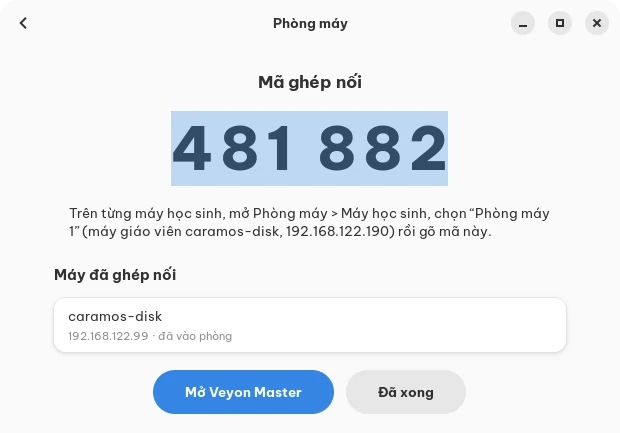
Teacher’s computer Computer Lab sets up Veyon or the lighter Epoptes and shows a 6-digit code
- to Pupils’ computers: watch screens, send messages, lock, take control
Pupils’ computers Computer Lab ▸ Student’s computer finds the teacher on the school network
- to Teacher’s computer: type the 6-digit code to join
App Center: Learning and teaching GCompris, Tux Paint, Klavaro, KTurtle, Thonny, Scratch 3, GeoGebra, Stellarium
- to Pupils’ computers: one-click installs
Xfce edition runs on 2 GB of RAM: about 610 MB after boot, English, like the textbooks
- to The computer lab: installed on 2 GB computers
CaramOS updates Each computer checks daily
- to The computer lab: updates over the network, no reinstall
Vietnam Linux Family community answers questions
The teacher runs the whole class from their own computer
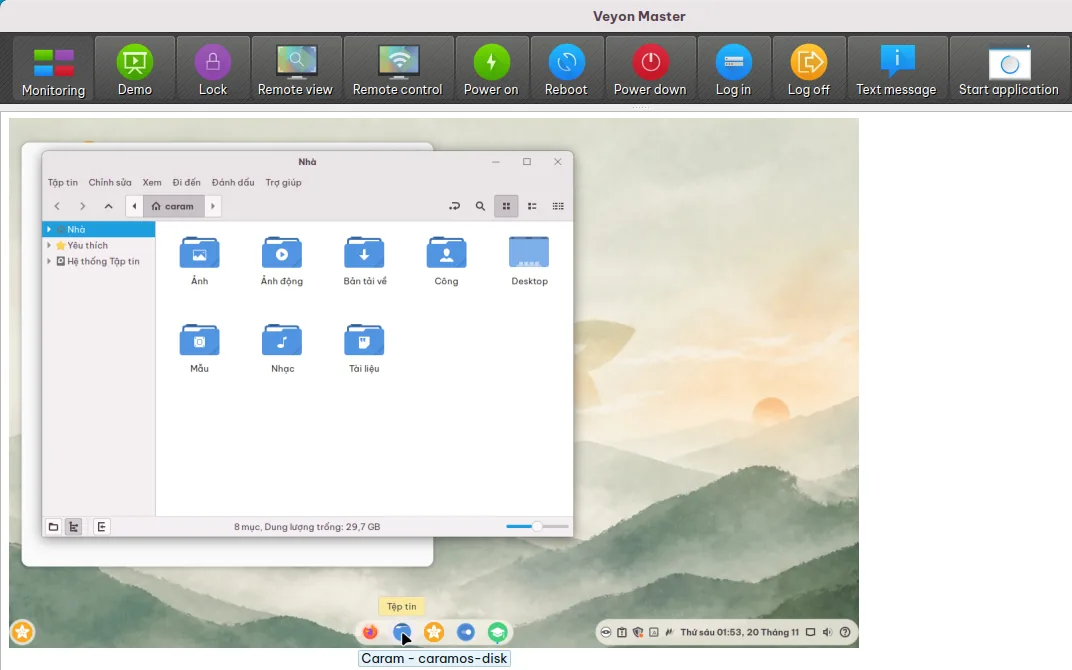
The Computer Lab tool installs and sets up classroom software for you, with no commands. The teacher’s computer shows a 6-digit code; each pupil’s computer finds the teacher’s on the school network, and typing the code is all it takes to join.
From the teacher’s computer, with Veyon
- Watch every pupil’s screen at once.
- Show your own screen to the whole class.
- Lock the pupils’ screens when you need everyone’s attention.
- Send messages and exercise files.
- Take control of one computer to show a pupil how.
- Turn the whole lab off at the end of the lesson.
Pick the software when you set up the teacher’s computer
- Veyon (recommended)
- Does everything in the list above. Works with Veyon on Windows computers too.
- Epoptes (lighter)
- For labs of 2 GB computers. The pupils’ computers connect to the teacher’s by themselves.
All the computers must be on the same network: the school’s cable or Wi-Fi. Computer Lab is in both the Cinnamon and the Xfce editions.
Old 2 GB computers can still teach
The Xfce edition is lighter than Cinnamon and keeps everything CaramOS users know. Right after boot, Task Manager shows about 610 MB of RAM on a 2 GB computer; the Cinnamon edition, measured the same way, about 780 MB.
- Try it from the USB stick before installing: Driver Check tells you at once what is missing (Wi-Fi, sound, graphics), so you know which computers in the lab will work.
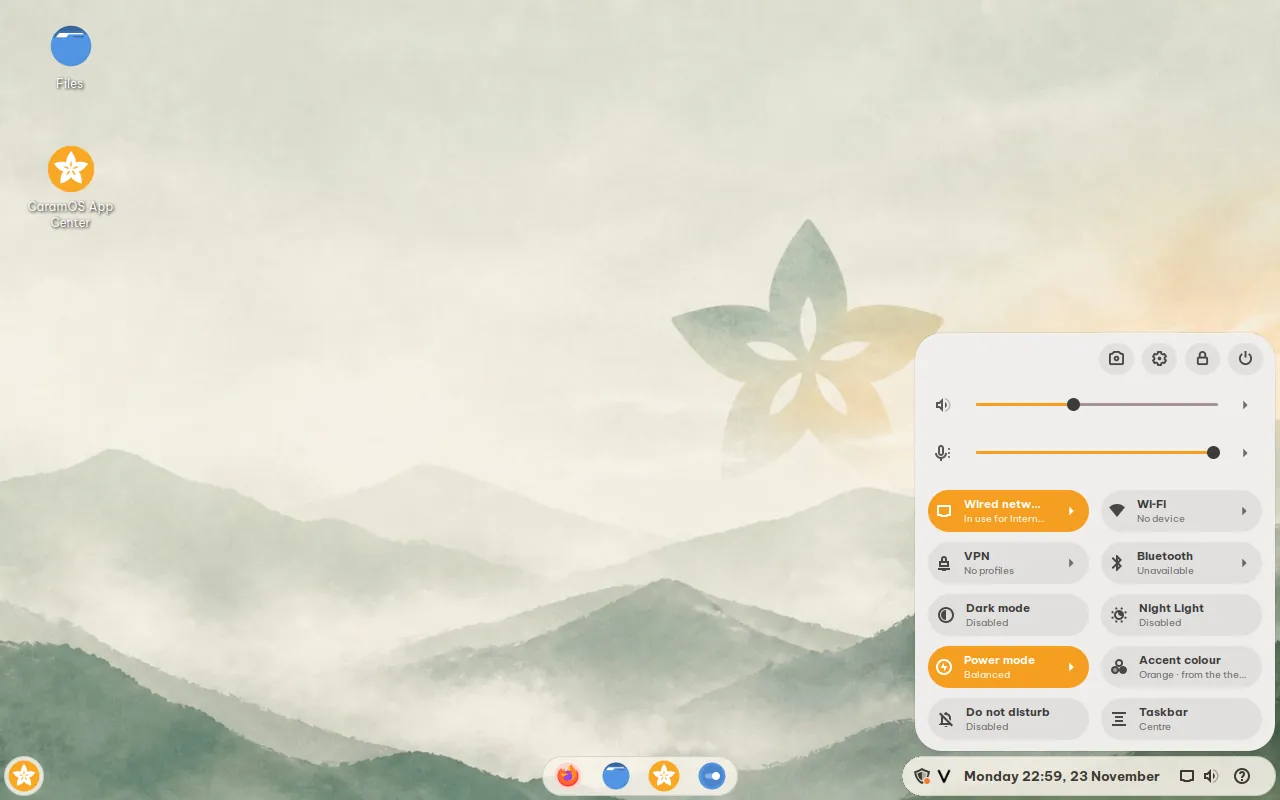
- The three-island taskbar, Control Center, App Center, Feedback & Help and the Update Center are all there.
- For a lab of 2 GB computers, pick Epoptes when you set up the teacher’s computer: it is lighter than Veyon.
- It needs a 64-bit computer that boots with UEFI or BIOS and 20 GB of free disk space. Computers with 4 GB of RAM or more use the Cinnamon edition.
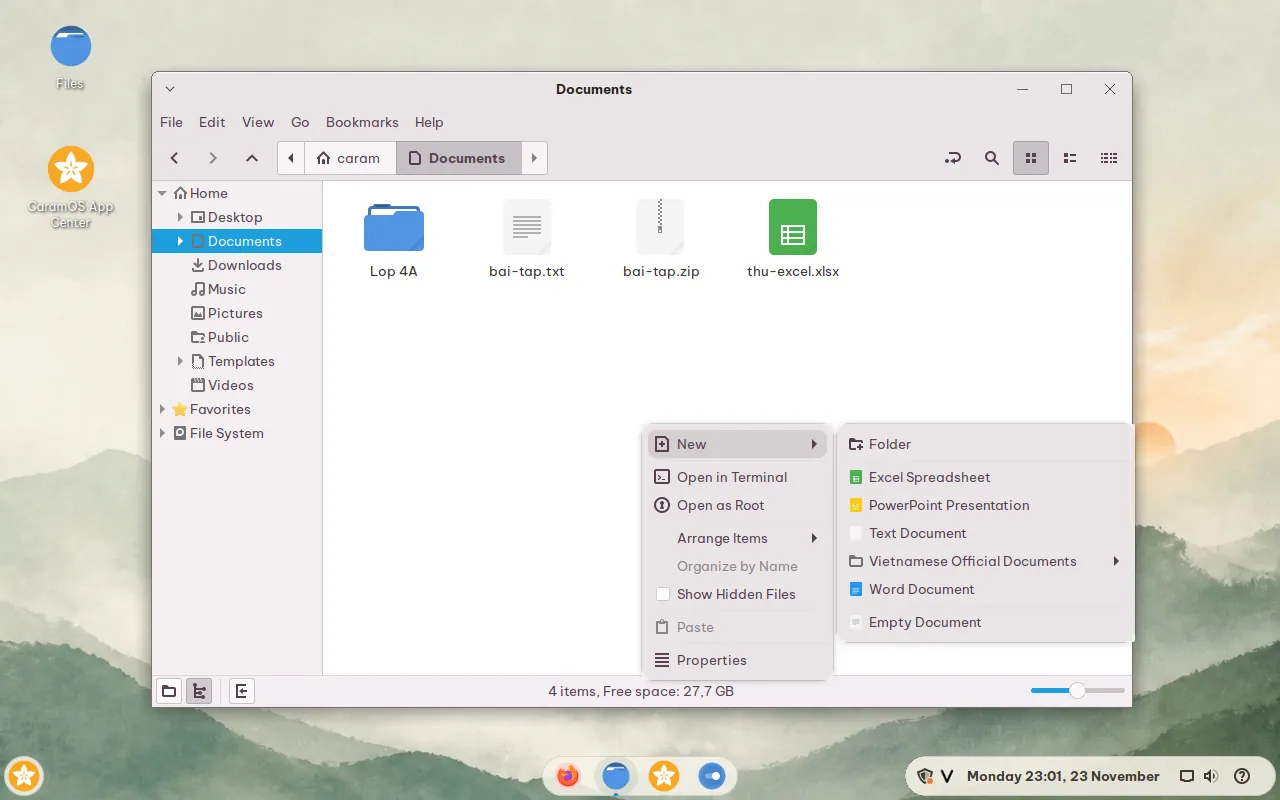
Pupils can follow the textbook on screen
The Xfce edition speaks English by default, with the same words as the Tin học textbooks: New, Folder, Copy, Paste. Choosing Vietnamese at install gives a Vietnamese interface; Vietnamese typing works either way.
- Right-click and choose New ▸ Folder (Mới ▸ Thư mục on the Cinnamon edition), with Word, Excel and PowerPoint templates.
- The left pane is a folder tree that opens level by level like Windows Explorer, for the lessons on folder trees.
- The Lotus input method is on: Telex by default, with VNI; Ctrl+Shift switches between English and Vietnamese.
- Opening a Word or Excel file before an office suite is installed offers ONLYOFFICE, WPS Office or LibreOffice.
An app for each subject, one click to install
The App Center opens with a “Learning and teaching” step. Nothing is selected in advance: each computer installs only what it needs.
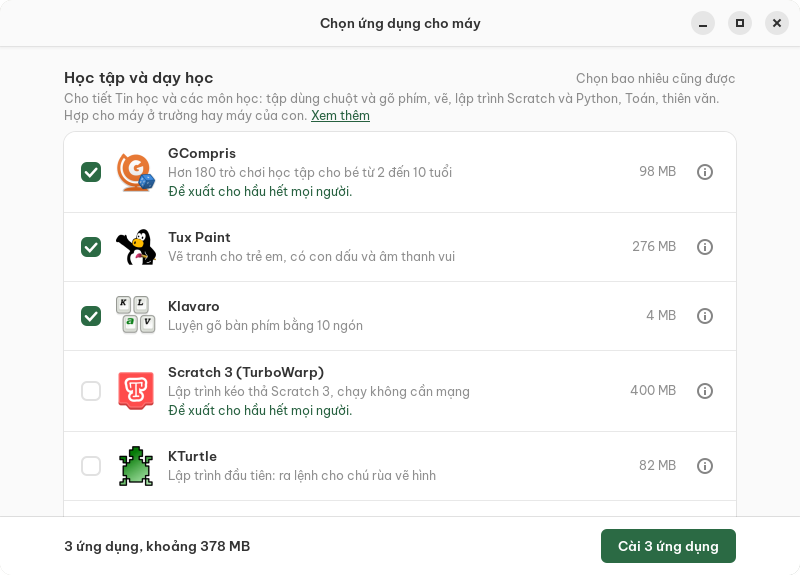
First steps with a computer
- GCompris
- Over 180 learning games for ages 2 to 10: mouse and keyboard practice, maths, reading
- Tux Paint
- Drawing for children, easier than Paint, with a Vietnamese interface
- Klavaro
- Touch typing, with exercises in Vietnamese text
Programming
- KTurtle
- First programming: give orders to a turtle that draws
- Scratch 3 (TurboWarp)
- Block programming that works offline and opens .sb3 projects
- Thonny
- Python for beginners, for secondary school computing
Maths and science
- GeoGebra
- Geometry and graphs; free for learning but not open source
- Stellarium
- A 3D planetarium for science and geography; needs decent graphics
Updates and answers, without reinstalling
Updates over the network
Each computer checks for a new version every day and installs it while it is in use, with no reinstall and no lost data. To update by hand as before, turn off Automatic updates in the Update Center (needs an administrator password).
Feedback & Help
Click the question mark at the right of the taskbar to ask a question or report a bug, with a screenshot or a short video. It goes to the Vietnam Linux Family community.
Built on Ubuntu 24.04 LTS
CaramOS is based on Linux Mint 22.3 and Ubuntu 24.04 LTS, with security updates until 2029.
How to get started
Do it on one computer first, then install the rest.
- Download the ISO and write it to a USB stickXfce for 2 GB computers, Cinnamon for 4 GB or more. Use a USB stick of 4 GB or more.
- Try it on one computer of the labStart from the USB stick: Driver Check says whether the computer works and which drivers are missing.
- Install it on the teacher’s computer and on each pupil’sClick the Install CaramOS icon on the Desktop and follow the steps.
- Set up the teacher’s computerOpen Computer Lab, choose Teacher’s computer, name the room, pick Veyon or Epoptes. The screen shows a 6-digit code; keep that page open while you pair.
- Bring each pupil’s computer into the classOn each pupil’s computer open Computer Lab, choose Student’s computer, pick the room and type the 6-digit code.
- Install the learning appsOpen the App Center, tick the apps each subject needs at the “Learning and teaching” step and click Install, on the computers that need them.
What schools ask
Does the school pay anything?
No. CaramOS is free and open source under the GPL-3.0, however many computers the school has. Veyon, Epoptes and the learning apps in the App Center are free too; GeoGebra is free for learning but not open source.
Which edition for a lab of 2 GB computers?
The Xfce edition. Right after boot, Task Manager shows about 610 MB of RAM on a 2 GB computer. When you set up the teacher’s computer, pick Epoptes to keep it light.
With an English interface, can pupils type Vietnamese?
Yes. The Lotus input method is on in both editions, Telex by default, with VNI; Ctrl+Shift switches between English and Vietnamese. For a Vietnamese interface, choose Vietnamese at install.
What if the lab still has a few Windows computers?
Veyon on CaramOS works with Veyon on Windows. Install Veyon on the Windows computers yourself: the Computer Lab tool only sets up CaramOS computers.
Does it need the internet?
Only to install Veyon or Epoptes, the learning apps and updates. During lessons, the teacher’s and the pupils’ computers only need the same school cable or Wi-Fi network.
How do we update the whole lab?
From 1.5.0 on, each computer installs new versions by itself after its daily check; nobody has to click. A computer on an older version needs Update now once to reach 1.5.0. To update right away without waiting, run sudo caramos-ota --upgrade --yes in a terminal.
Can a computer on the Cinnamon edition switch to Xfce?
Not by itself: to use Xfce, install it fresh from the Xfce ISO. Computer Lab, the learning apps and New ▸ Folder are in both editions.
Feedback and feature requests
What else should CaramOS do for your school’s lab, or what isn’t working well? Write to the CaramOS team; every message is read.