
Manage the whole office from one computer
CaramOS Business sets the wallpaper, browsers, printers, Wi-Fi and USB rules of staff computers by department, takes the asset inventory by itself and lets IT help staff remotely once they accept. It all runs on the company’s own network, with no cloud.
Free during the trial. Install it from the App Center’s “For your company” step, on the admin computer and on each staff computer. After the trial it may become paid; companies using it will be told in advance.
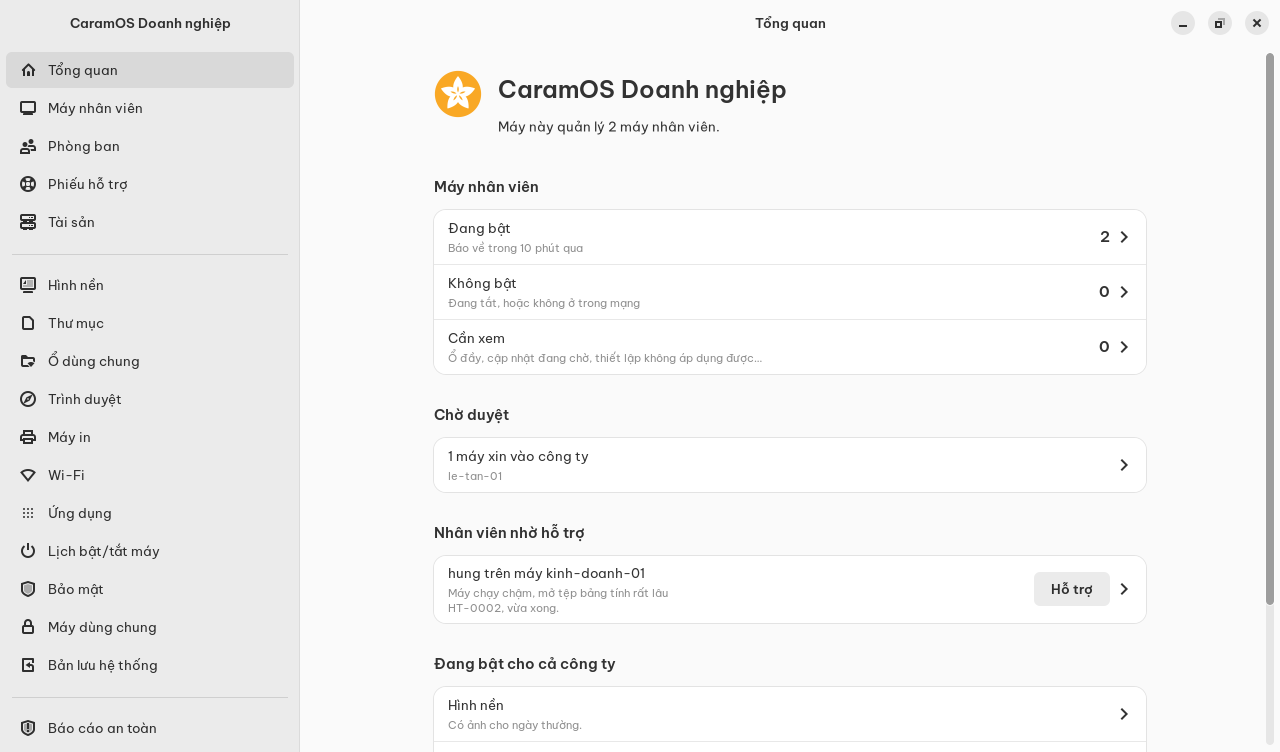
- Off until you turn it on
- the admin turns each feature on, for the whole company or one department
- On your own network
- the admin computer is a CaramOS computer in your office, no cloud
- Free during the trial
- for computers running CaramOS, Cinnamon or Xfce
How the office computers connect
The admin turns settings on at the admin computer. Staff computers follow only settings signed by that computer, report back how they are, and keep files on the company’s server.
Admin computer A CaramOS computer, on during office hours, signs every setting
- to Settings groups: turns groups on
- to Staff computers: instant actions (lock, message, shut down); remote help once the employee accepts
- to Reports and backup: exports
Settings groups
- Wallpaper
- Browser: sites blocked by hour
- Printers
- Company Wi-Fi
- USB storage
- Power schedule
- Required and forbidden apps
- Screen lock
- Firewall
- to Staff computers: signed settings, for the company or one department
Staff computers
- to Admin computer: inventory and health; Ask IT for help requests
- both ways with Server or NAS: Desktop, Documents, shared drives
Accounting USB storage blocked
Sales Facebook allowed
Other departments company-wide settings
Server or NAS of the company
Reports and backup
- The asset list (Excel)
- An activity log
- A backup of the admin
Settings for the whole company, or one department
Each group turns on separately, and every group starts off. Accounting can block USB drives while Sales keeps Facebook; a single computer can also have its own settings, which win over its department’s.
| Settings group | What the admin can set |
|---|---|
| Wallpaper | A picture for ordinary days and others for occasions such as Tết, 30 April or the company’s anniversary; staff can be kept from changing it. |
| Browser | Home page, company bookmarks, safe search, and websites blocked all the time or only during working hours (8:00–12:00 and 13:30–17:30 ready to use). Ready lists for social networks, video, games and shopping; Zalo is never in them. For Firefox, Chrome, Cốc Cốc, Edge and Brave. |
| Printers | Network printers set up on every computer, with a default printer. |
| Wi-Fi | The company’s Wi-Fi for laptops; the password is encrypted separately for each computer. |
| USB storage | Allowed, read-only or blocked, with a temporary unlock for one computer. Keyboards, mice, printers and signing tokens keep working. |
| Power schedule | Shut computers down at the end of the day, with a warning and a few postponements; turn them on in the morning with the computer’s own timer and Wake-on-LAN. |
| Apps | Apps that must be installed and apps that may not be, from the App Center’s catalogue. |
| Screen lock | Lock after some minutes without use, and when the computer goes to sleep. |
| Firewall | Turn the firewall on: other computers on the network cannot connect to a staff computer. |
| Shared drives | Company and department folders, ready in every employee’s file manager. |
| Folders on the server | Each employee’s Desktop and Documents live on the company’s server or NAS. |
Know what computers you have, and which will fail
Turn on the automatic inventory and each computer reports its configuration to the admin computer. The admin adds the asset details, then exports the list to Excel, laid out like an asset count record.
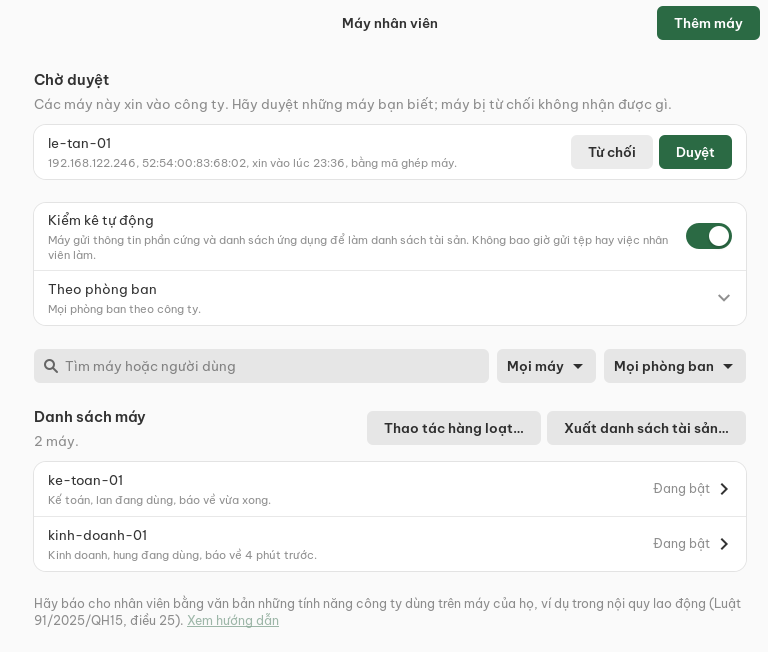
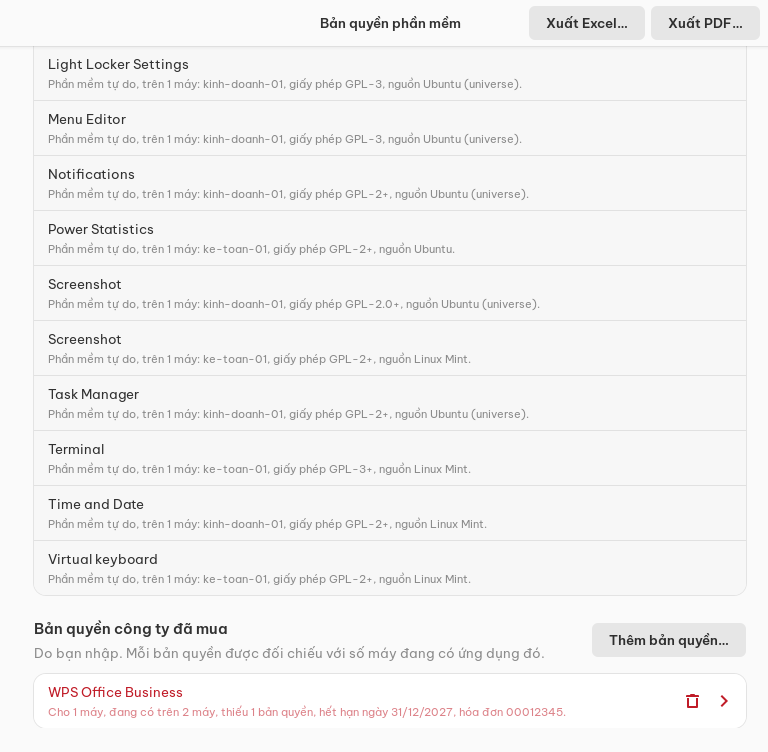
Each computer sends
- Make, model, serial number
- CPU, RAM, disks and disk health
- Battery, monitors, network cards
- CaramOS version, installed apps
The admin adds
- Asset code, purchase date, price
- Warranty end
- User, location
The admin computer warns when
- A disk has under 10% free or is failing
- A battery is below 60% of its capacity
- Security updates have waited over 7 days
- A clock is more than 2 minutes off
- A computer has not been seen for 3 days
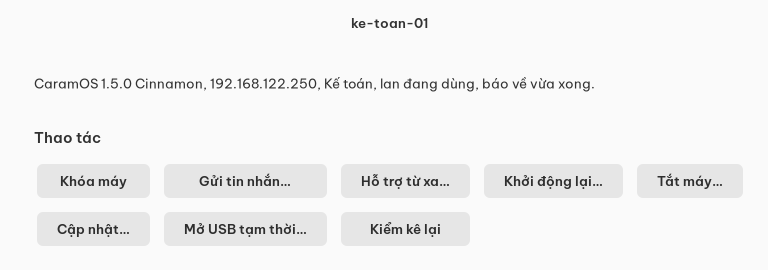
Urgent actions reach a computer in seconds
Send them to one computer, a department or the whole company. Whoever is at the computer is always told first.
- Lock the computer.
- Send a message, with an I have read it button that shows who saw it.
- Log out, restart or shut down, with a countdown.
- Update CaramOS and security patches now.
- Take inventory again.
- Unlock USB storage for one computer for a while.
When an employee needs IT
- The employee clicks Ask IT for helpThey write a few words about the problem.
- The admin computer shows the messageWith the computer’s name and the employee’s login name.
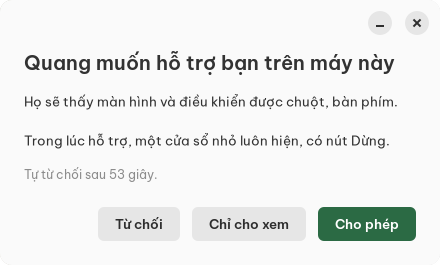
- IT clicks Remote helpThe employee chooses to let IT watch or control the screen, or refuses.
- While IT helpsA small window with a Stop button stays on the employee’s screen. The connection is encrypted.
Staff files live on the company’s server
Each employee’s Desktop and Documents point to their own folder on the company’s server or NAS: Windows Server, Synology, TrueNAS or Samba. Saving to the Desktop saves to the server.
- Network down or NAS off: files are kept on the computer for now and the employee is told; once the server is back they move up by themselves.
- Tidy-up: files left on the computer move into a dated Unsorted folder on the server. No file is ever deleted.
- The company’s and each department’s shared drives are ready in the file manager.
Blocks, never watches
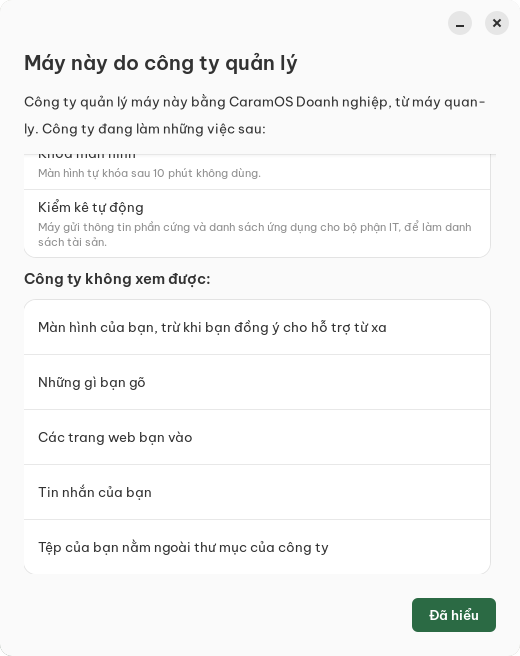
CaramOS Business helps a company set rules for its computers. It is not there to watch what staff do.
Vietnam’s Personal Data Protection Law 91/2025/QH15, in force since 1 January 2026, requires employees to be clearly told about the technical measures used on their computers.
Never
- Secret screenshots or screen recording
- Keystroke logging
- Browsing history
- Location tracking
- Reading messages
- Arbitrary commands or remote wipes
Staff always know
- The “This machine is managed by the company” page lists exactly what the company turned on for that computer.
- Remote help starts only when the employee accepts, and they can stop it at any time.
- A remote restart, shutdown or logout always shows a countdown on screen.
A stranger on the network cannot pose as the admin computer
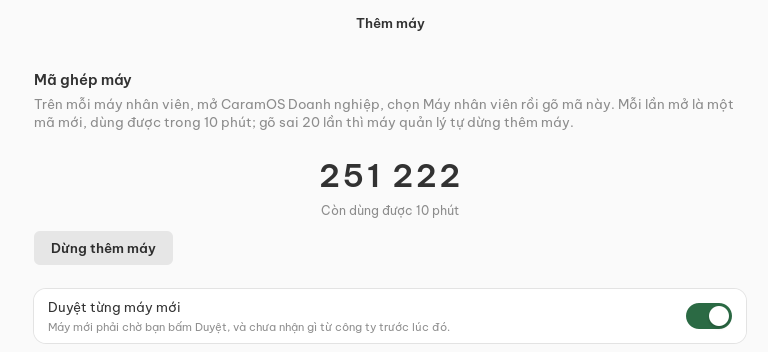
- Paired with a 6-digit code
- A staff computer remembers the admin computer’s key when it pairs, then follows only settings with the right signature.
- A key for each computer
- Every request between the two carries an authentication code; no password ever travels in plain text.
- No arbitrary commands
- The admin computer can send only the actions listed above. It cannot run just any command on a staff computer.
- Activity log and backup
- Every change goes into a log. If the admin computer fails, restore its backup on another computer; staff computers find it again without pairing anew.
How to get started
Start with a few computers, then roll it out to the whole company.
The admin and staff computers need to run CaramOS, Cinnamon or Xfce, on the same company network.
- Install CaramOS BusinessOpen the App Center, tick CaramOS Business at the “For your company” step and click Install, on the admin computer and on each staff computer.
- Pick the admin computerA CaramOS computer that stays on during office hours. Staff computers take their settings from it.
- Pair the staff computersThe admin computer shows a 6-digit code for 10 minutes; on each staff computer pick the admin computer and type the code.
- Turn features on one by oneFor the whole company or for a department, then check that the staff computers got them.
- Tell your staffTell staff in writing what the company manages on their computers, for example in the internal labour rules.
What companies ask
Where do I install it?
From the CaramOS App Center, at its “For your company” step. Once installed, open CaramOS Business and choose whether this is the admin computer or a staff computer.
Does it cost anything?
Not now: CaramOS Business is free during its trial period. It may become paid for companies later; if so, companies using it will be told in advance. CaramOS itself stays free.
Does it need the internet or a cloud service?
No cloud. The admin computer is a CaramOS computer in your office; settings, inventory and remote help travel on the company network. The internet is needed only for downloading software and updates.
Can the company see what staff do?
No. No screenshots, no keystroke logging, no browsing history, no location. A screen is seen only when the employee accepts remote help.
Can it manage Windows computers?
No. CaramOS Business manages computers running CaramOS, Cinnamon or Xfce, only.
Do MISA, e-invoices and digital signatures work?
Browser-based apps such as MISA AMIS, meInvoice and remote signing (MISA eSign, VNPT SmartCA) work on CaramOS. Signing tools that need a USB token exist only for Windows today. When USB storage is blocked, signing tokens still work.
What if the admin computer fails?
Restore its backup on another computer. The backup has its own passphrase, and staff computers find the new admin computer by themselves, with no re-pairing.
Feedback and feature requests
What else should CaramOS Business do for your company, or what isn’t working well? Write to the CaramOS team; every message is read.